 Editorify
Editorify WooCommerce Store Connection Troubleshooting Guide
On this page
- Q: I've installed the plugin but I am getting an error. What should I check?
- Installing WooCommerce (required for Editorify)
- Permalink settings for Editorify
- Q: Why is it important to use the latest server PHP version?
- Q: Why is an SSL certificate necessary for connecting my store?
- Done all the above suggestions? Try to reconnect your store in the Editorify dashboard:
If your WooCommerce store will not connect to Editorify, the cause is usually one of these: a security plugin or host firewall blocking the Editorify server IP (198.199.86.121), WooCommerce not installed or active, "Plain" permalinks, no SSL certificate, or an old PHP version. Check each below, then reconnect your store from the Editorify dashboard.
Q: I've installed the plugin but I am getting an error. What should I check?
If you've installed the Editorify plugin and you are facing an issue, please review the following points:
1. Are you using any firewall or security plugins?
If you're using security plugins like Wordfence, Jetpack, Sucuri, Really Simple Security, All-In-One Security (AIOS), Malcare or any other security/firewall plugins, you need to configure the plugin firewall and whitelist the Editorify server IP.
Configure your security plugin, locate the firewall or whitelist section, and add this IP to the whitelist: 198.199.86.121
2. Is the WooCommerce plugin installed and activated?
Ensure that the WooCommerce plugin is both installed and activated on your WordPress website.
You can check this by going to the "Plugins" section in your WordPress dashboard.
See Installing WooCommerce below, or WooCommerce's own install guide.
3. Are your WordPress permalinks set correctly?
Log in to your WordPress admin panel.
Go to Settings > Permalinks.
Make sure "Post name" is selected.
- If it's not, change it to "Post name" and save the changes. (Screenshot)
More detail in Permalink settings for Editorify below.
4. Does your website have an SSL certificate?
Your website must use HTTPS (have an SSL certificate installed).
If you don't have an SSL certificate, consider using free WordPress plugins like:
WP Encryption
SSL-zen
Click here to learn how to install
5. Have you whitelisted the Editorify server IP in your server provider?
Contact your hosting provider and ask them to whitelist the Editorify IP: 198.199.86.121.
This step is crucial as some hosting providers may have additional security measures that could block external connections.
6. Are you using the latest server PHP version?
Check your server's PHP version and update it if necessary.
You can usually find this information in your hosting control panel or by contacting your hosting provider.
Installing WooCommerce (required for Editorify)
WooCommerce is a required plugin for the Editorify app. Before you can use Editorify, WooCommerce must be installed and activated on your WordPress site.
Install and activate WooCommerce
Log in to your WordPress admin dashboard with an administrator account.
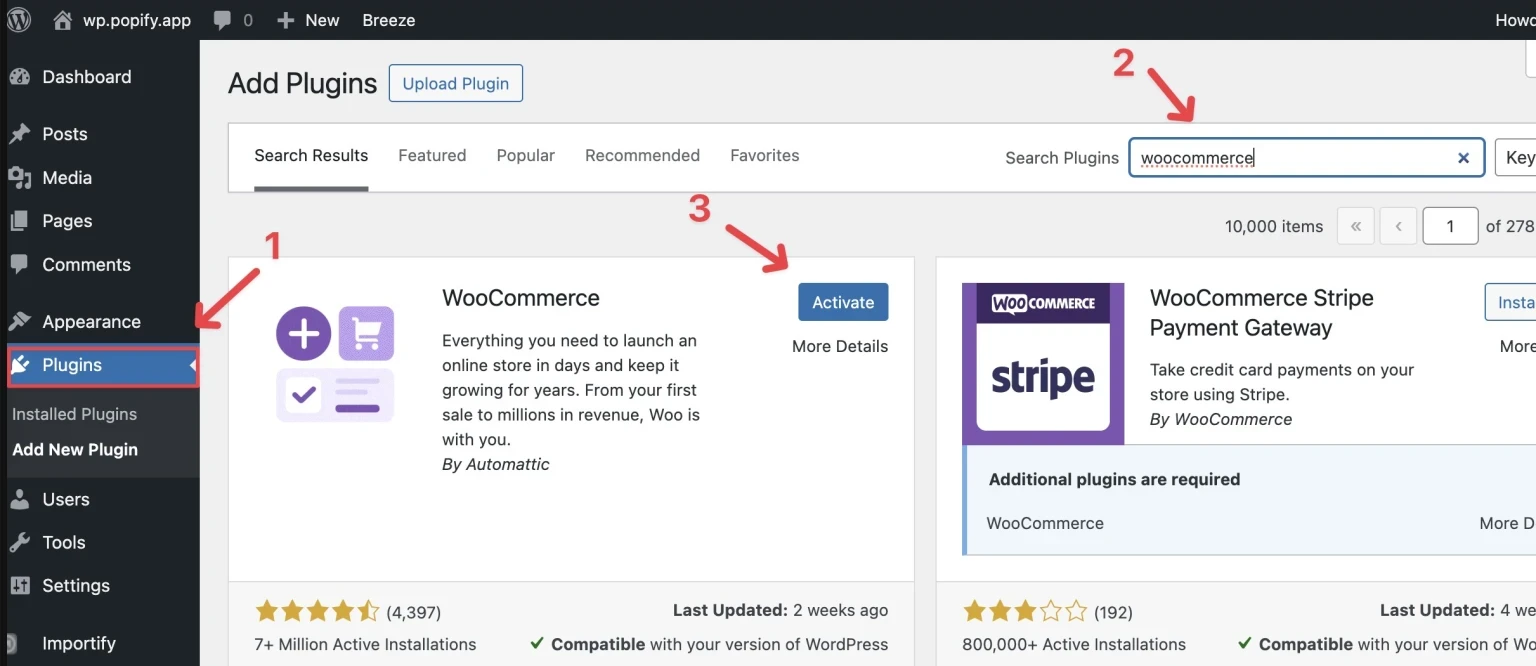
Go to "Plugins", then "Add New".
Type "WooCommerce" in the search bar and find the official WooCommerce plugin by Automattic.
Click "Install Now", wait for the installation to finish, then click "Activate".
Complete the initial setup
When you activate WooCommerce for the first time, its setup wizard launches automatically. If it does not, go to "WooCommerce", then "Settings", and look for the setup wizard link at the top of the page. Complete the basic store setup, payment methods and shipping options if needed.
System requirements and checks
WordPress 5.0 or higher, PHP 7.2 or higher, MySQL 5.6 or higher.
HTTPS: WooCommerce recommends it; Editorify requires it (see point 4 above).
After installing, check that WooCommerce shows as active under "Plugins" and that its menus appear in your dashboard.
If the installation fails, check for plugin conflicts, confirm your WordPress version is compatible, and contact your hosting provider.
Then install and connect Editorify: How to install and activate the Editorify plugin.
Permalink settings for Editorify
Editorify requires the "Post name" permalink structure. The app does not work correctly with "Plain" permalinks (/?p=123), because it needs predictable URLs to manage your content.
Set your permalinks to Post name
Log in to your WordPress dashboard.
Go to "Settings", then "Permalinks".
Under "Common Settings", select "Post name". Your URLs then look like
yoursite.com/sample-post/. Do not select "Plain".Click "Save Changes" at the bottom of the page.
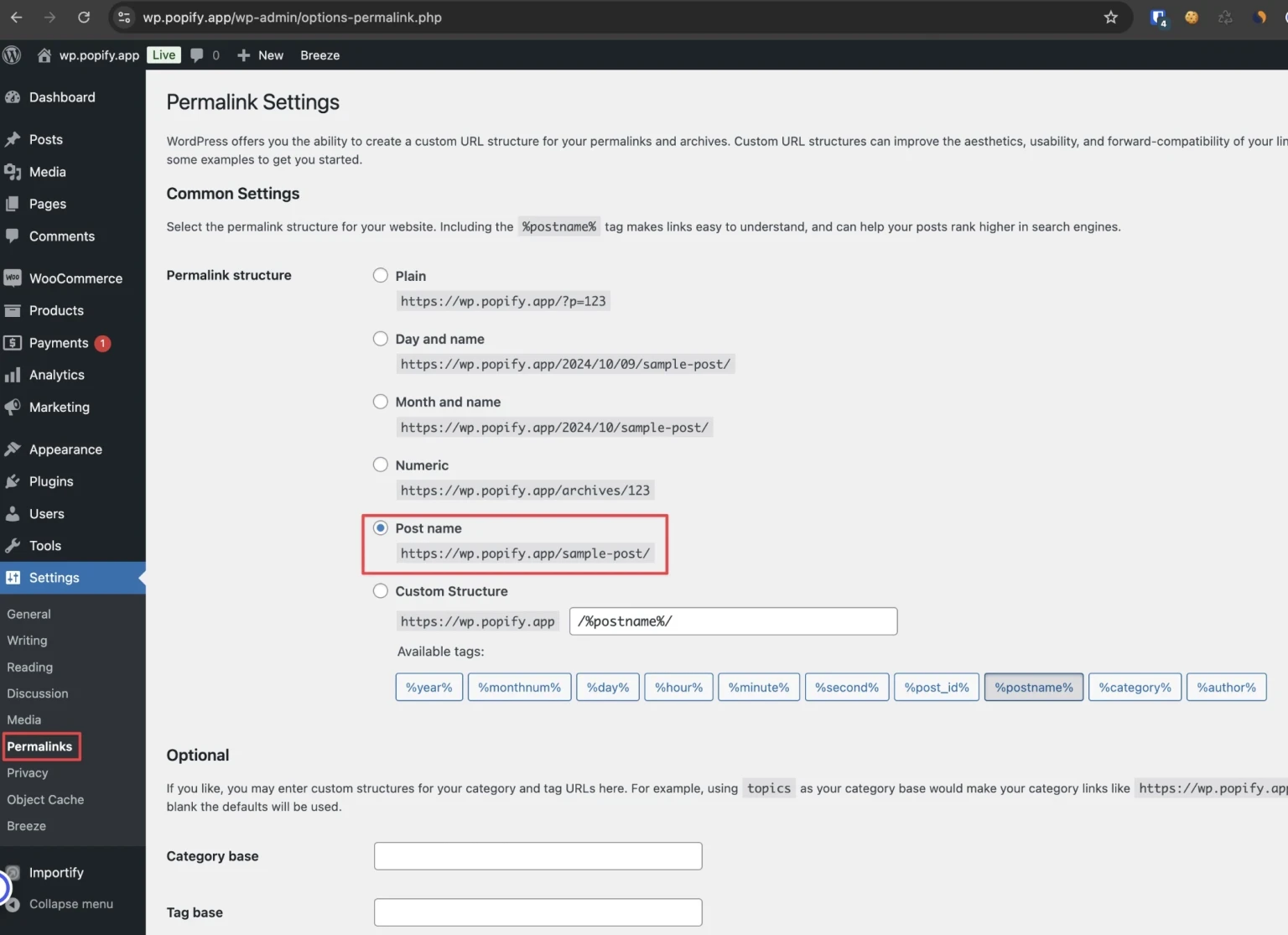
After saving, check that Editorify connects to your site. If you are setting up a new WordPress site, set permalinks before installing Editorify.
If it still does not work after changing permalinks
Go back to "Settings", then "Permalinks", and make sure "Plain" is not selected.
Click "Save Changes" again, even if nothing changed.
Clear your site's cache.
Reconnect the Editorify app (steps at the end of this guide).
Still failing? Contact Editorify support and give us temporary access to your WordPress admin.
Q: Why is it important to use the latest server PHP version?
Using the latest server PHP version is important for several reasons:
Security: Newer versions include security patches that protect your website from known vulnerabilities.
Performance: Updated PHP versions often come with performance improvements, making your website faster.
Compatibility: Many modern plugins and themes require recent PHP versions to function correctly.
Support: Older PHP versions eventually lose support, meaning you won't receive critical updates.
Always ensure you're using a PHP version that is still actively supported and compatible with your WordPress and WooCommerce versions.
Q: Why is an SSL certificate necessary for connecting my store?
An SSL certificate is crucial for several reasons:
Security: It encrypts data transferred between your website and your visitors, protecting sensitive information like login credentials and payment details.
Trust: Browsers display a padlock icon for HTTPS sites, increasing visitor trust.
SEO: Google uses HTTPS as a ranking factor, potentially boosting your search engine visibility.
API requirements: Many third-party services, including Editorify, require HTTPS for secure API connections.
Compliance: If you handle customer data, an SSL certificate helps with regulatory compliance (e.g., GDPR, PCI DSS).
Installing an SSL certificate is a critical step in securing your e-commerce site and enabling integrations with services like Editorify.
Done all the above suggestions? Try to reconnect your store in the Editorify dashboard:
Log in to the Editorify dashboard.
Visit the "API settings" from the side menu.
Enter your store URL.
Click "Connect My Store".
If your store URL includes "www", try adding or removing it and attempt to reconnect.
Still stuck? Contact support or email support@editorify.com.