 Editorify
How to collect reviews from my customers?
On this page
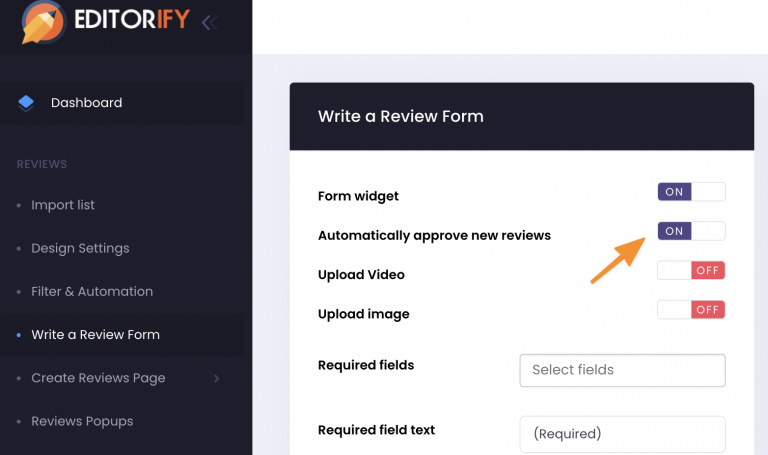
When you install Editorify, a "Write a review" button and form are added to your product pages so customers can leave feedback. New customer reviews are approved and published automatically. To check each review before it goes live, turn off "Automatically approve new reviews" in the Editorify dashboard. This works on every plan.
Check that the review form is showing
Visit your store.
Open a product page, scroll down and check that you see the "Write a review" button.
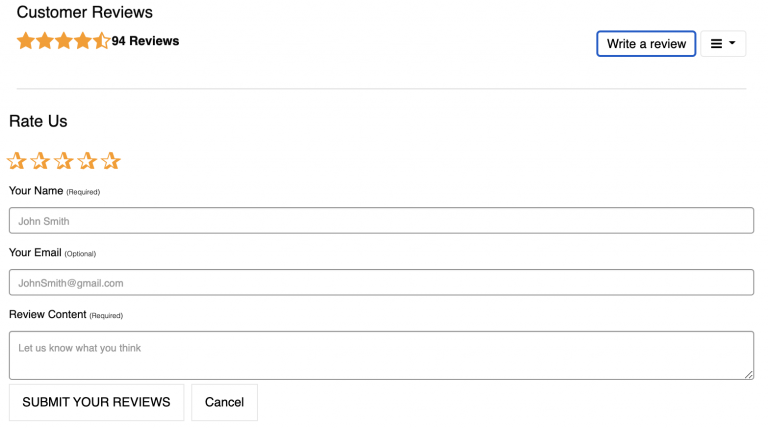
If the button is missing, open the Editorify dashboard, click "Write a review form" and make sure the form widget is turned on.
Approve new reviews manually
Open the Editorify dashboard.
Click "Write a review form".
Turn off "Automatically approve new reviews" and click Save.
In some versions of the dashboard the same switch is under "General settings" and is labelled "Approve new customer reviews automatically".
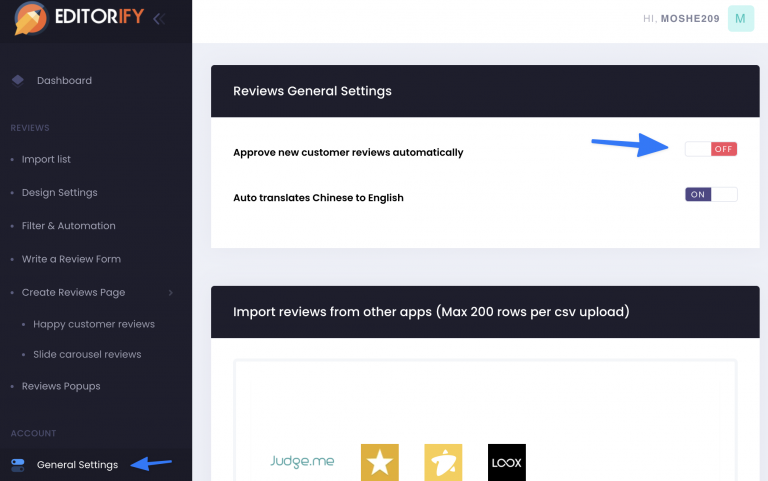
From then on, every customer review waits for your approval before it is published.
Approve pending reviews
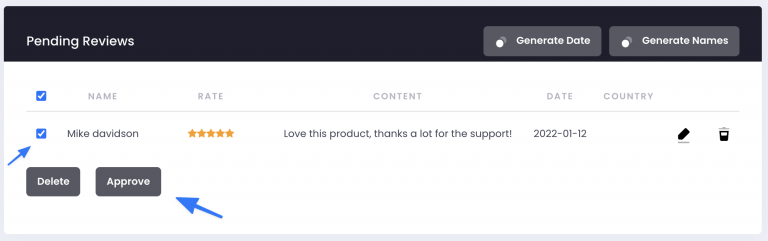
Select "Import list" from the side menu and click "Pending reviews".
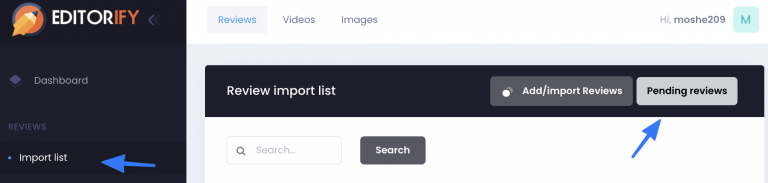
Select the reviews you want to publish and click "Approve".
Getting more reviews
Let customers add photos: How do I enable customers to submit photos with their reviews?
The Diamond plan sends automated review request emails to your customers (up to 1,000 per month). See pricing.
Still not seeing the form? Contact us and we will help.
Still stuck? Contact support or email support@editorify.com.