 Editorify
How to move your reviews from another app with a CSV file
Bring your reviews from Judge.me, Loox, Yotpo, Stamped.io and other apps into Editorify.
On this page
To move your reviews to Editorify from another reviews app, export them from that app as a CSV file, then upload the file in the Editorify extension's CSV import. Editorify recognises exports from Judge.me, Loox, Yotpo, Stamped.io, Ali Reviews, Fera, Opinew, Kudobuzz, Rivyo and LAI Reviews, and lets you match the columns of any other file by hand. CSV import is included with every paid plan.
Before you start
A paid Editorify plan. On the Free plan, CSV import shows an upgrade prompt.
The Editorify Chrome extension, signed in to your Editorify account.
The products already in your store. Reviews are assigned to existing products; CSV import does not create products.
The export file from your old app: .csv, .tsv or .txt, up to 10 MB. Look for an Export or Download option on your old app's reviews page.
Open CSV import
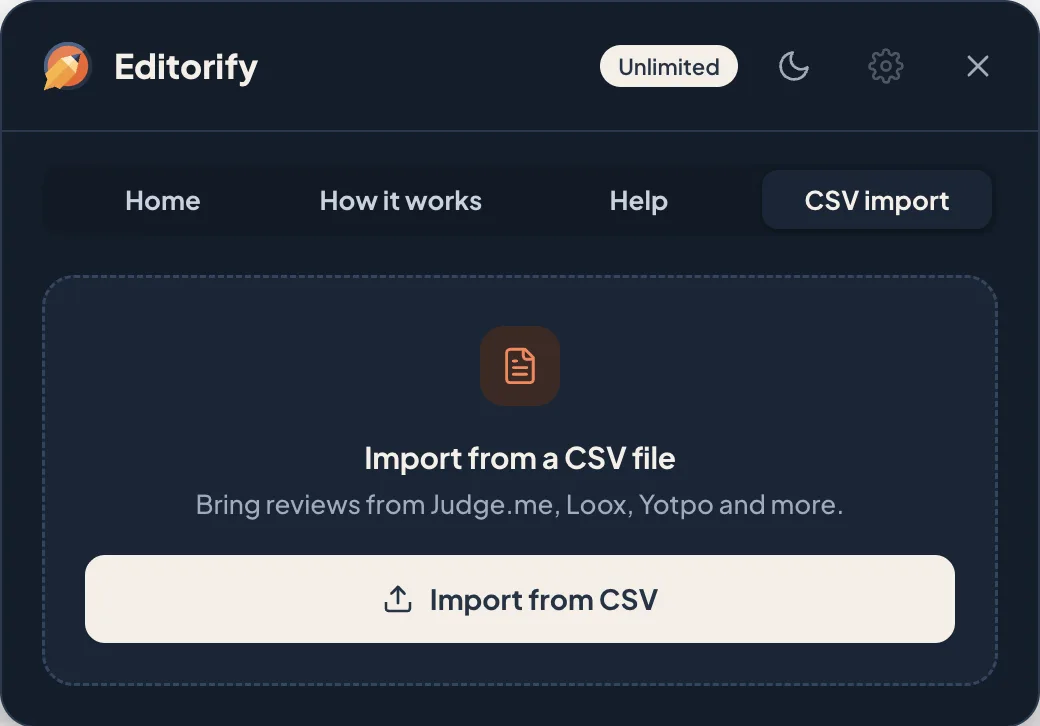
Click the Editorify icon in the Chrome toolbar on any supported marketplace page, open the CSV import tab and click Import from CSV. The import opens in its own tab.
Import your file
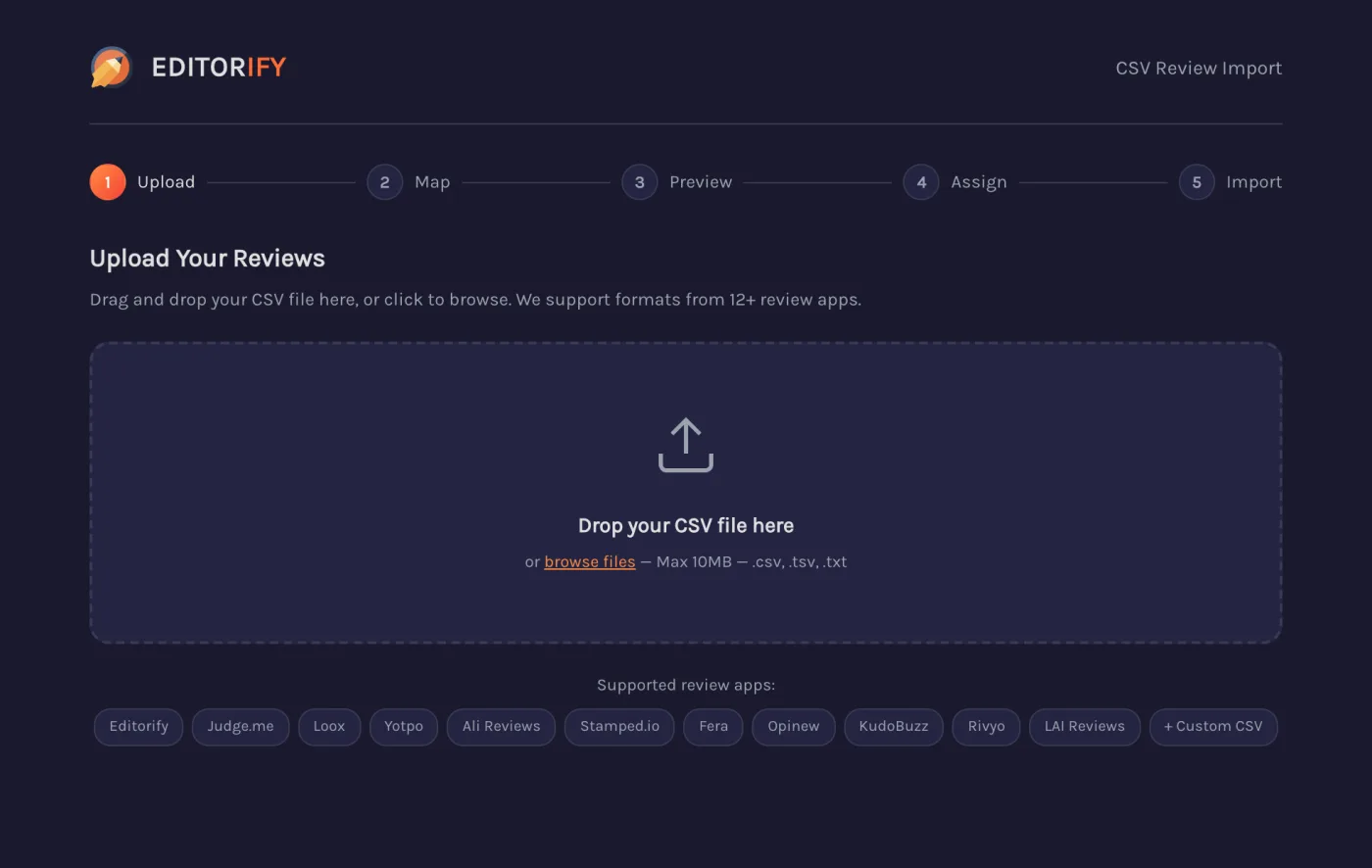
The page walks through five steps: Upload, Map, Preview, Assign and Import.
Upload. Drop the file on the page or click browse files.
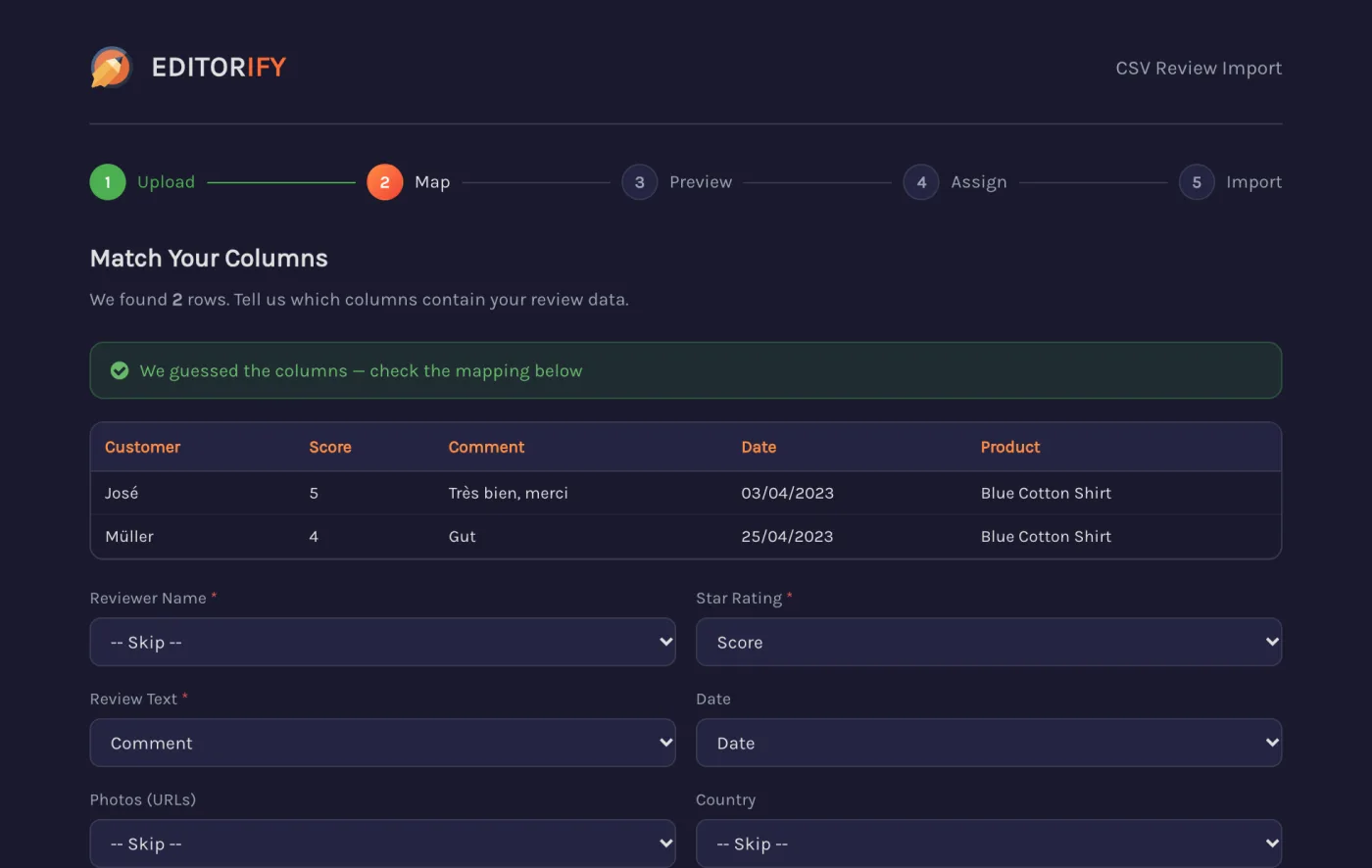
Map. When Editorify recognises the export, it maps the columns for you and skips straight to Preview with a note such as Judge.me export: 4 reviews found. For any other file, check the columns it guessed: Reviewer Name, Star Rating, Review Text, Date, Photos (URLs), Country, and Product, the column that says which product each review belongs to.
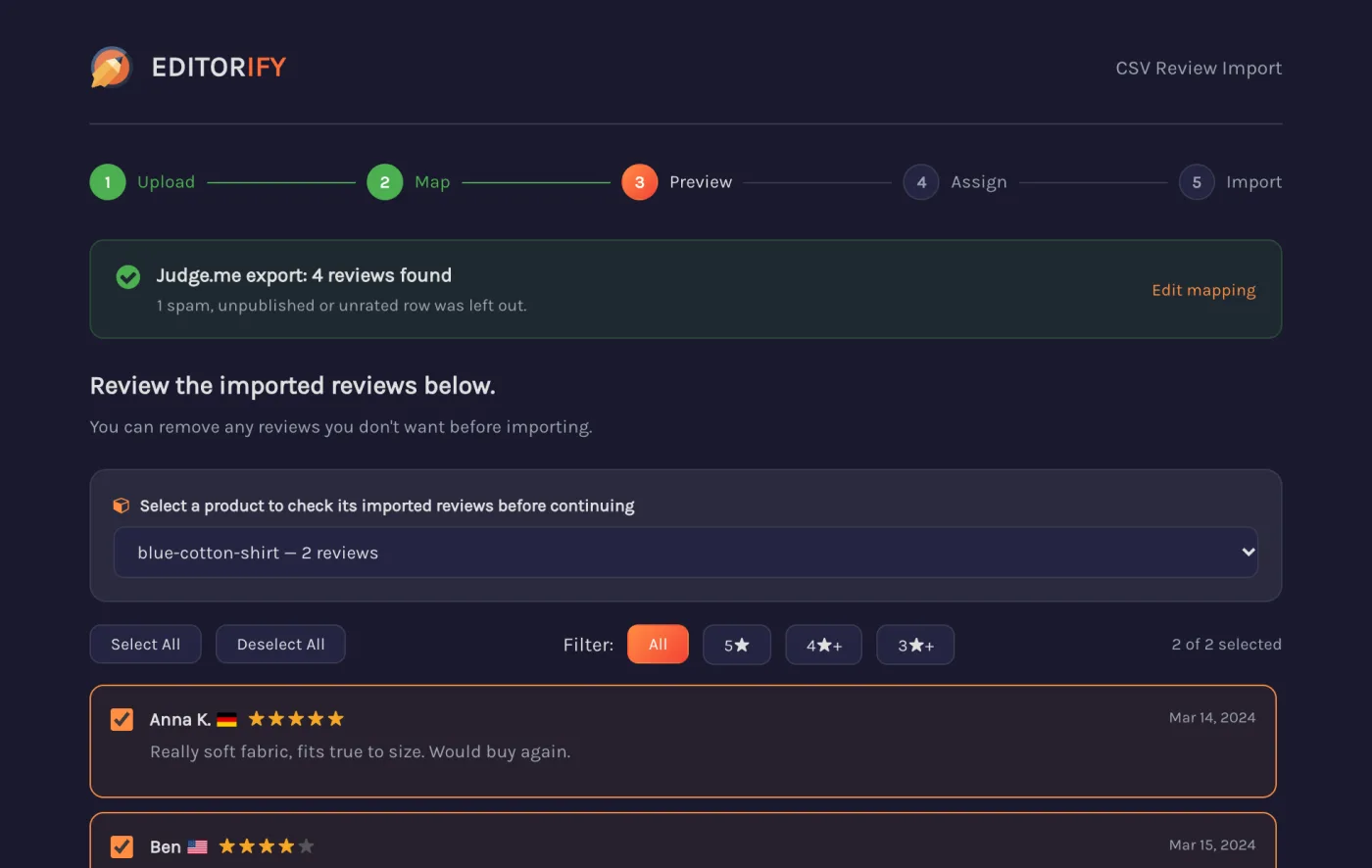
Preview. Check the reviews for each product. Untick any you don't want, or filter by stars (All, 5★, 4★+, 3★+). Spam, unpublished and unrated rows are already left out, and the note at the top says how many.
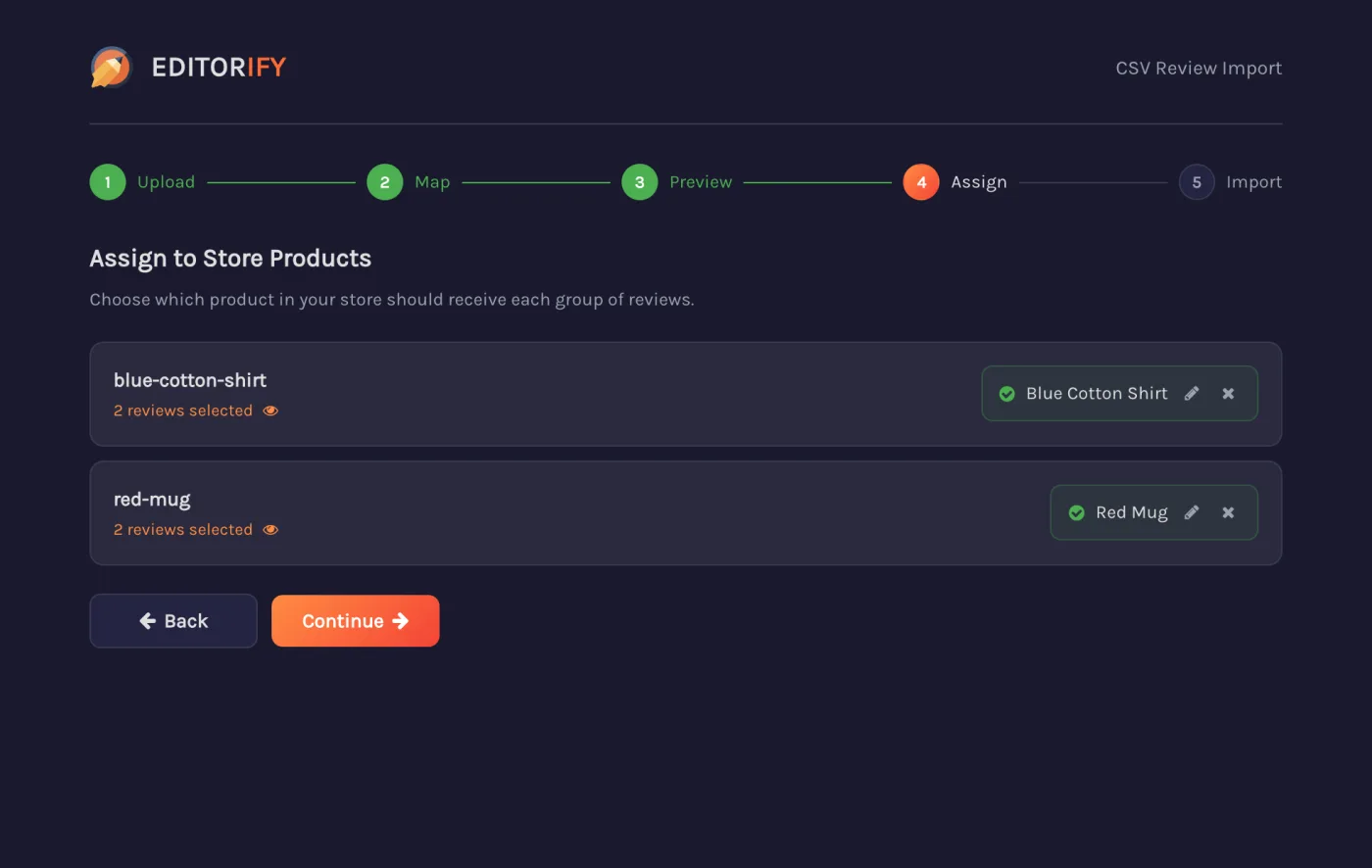
Assign. Editorify matches each group of reviews to a store product with the same name and tells you how many it matched. Check each one. Click the pencil to choose a different product, or the X to leave a group out.
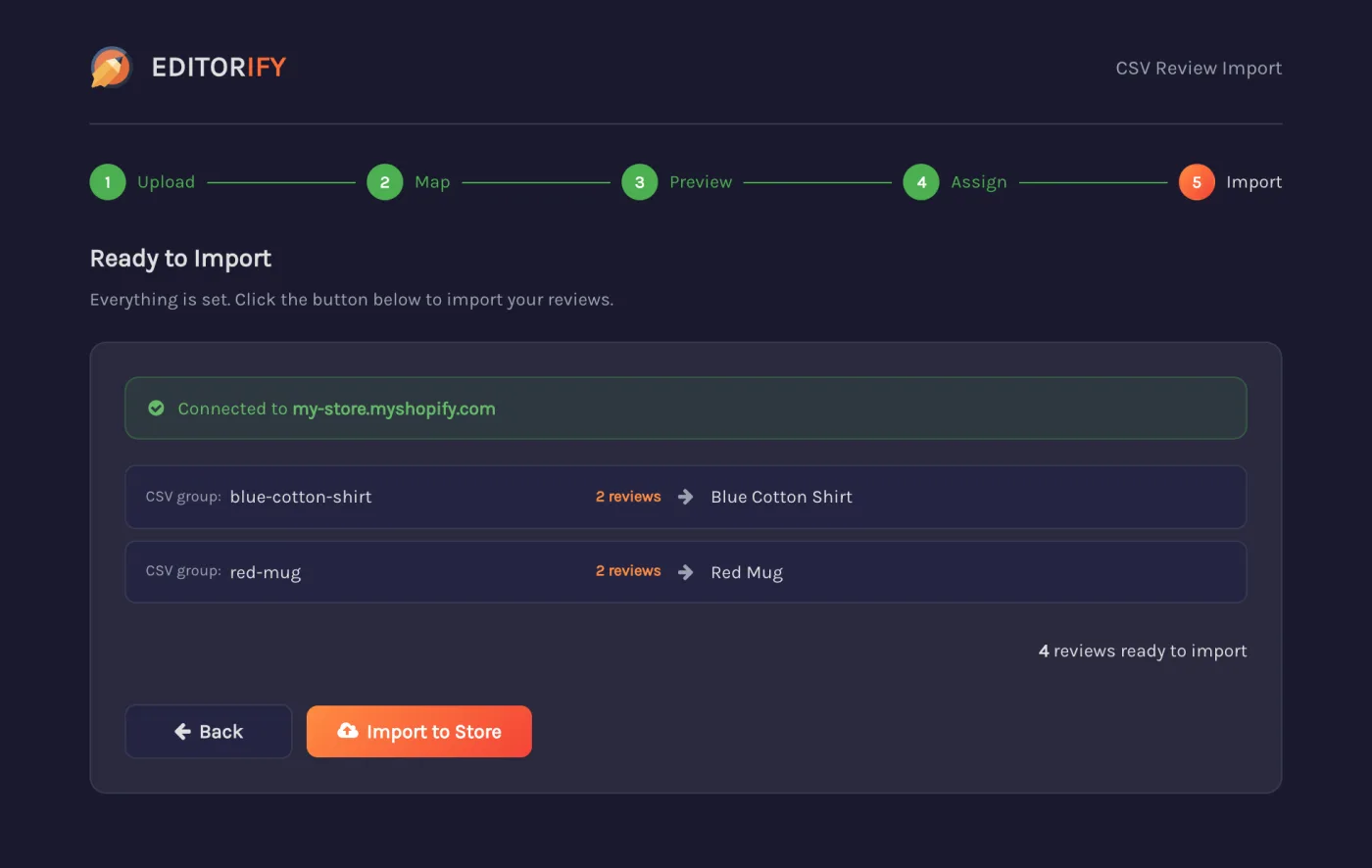
Import. Check the summary, which shows the store you're connected to and where each group goes, then click Import to Store.
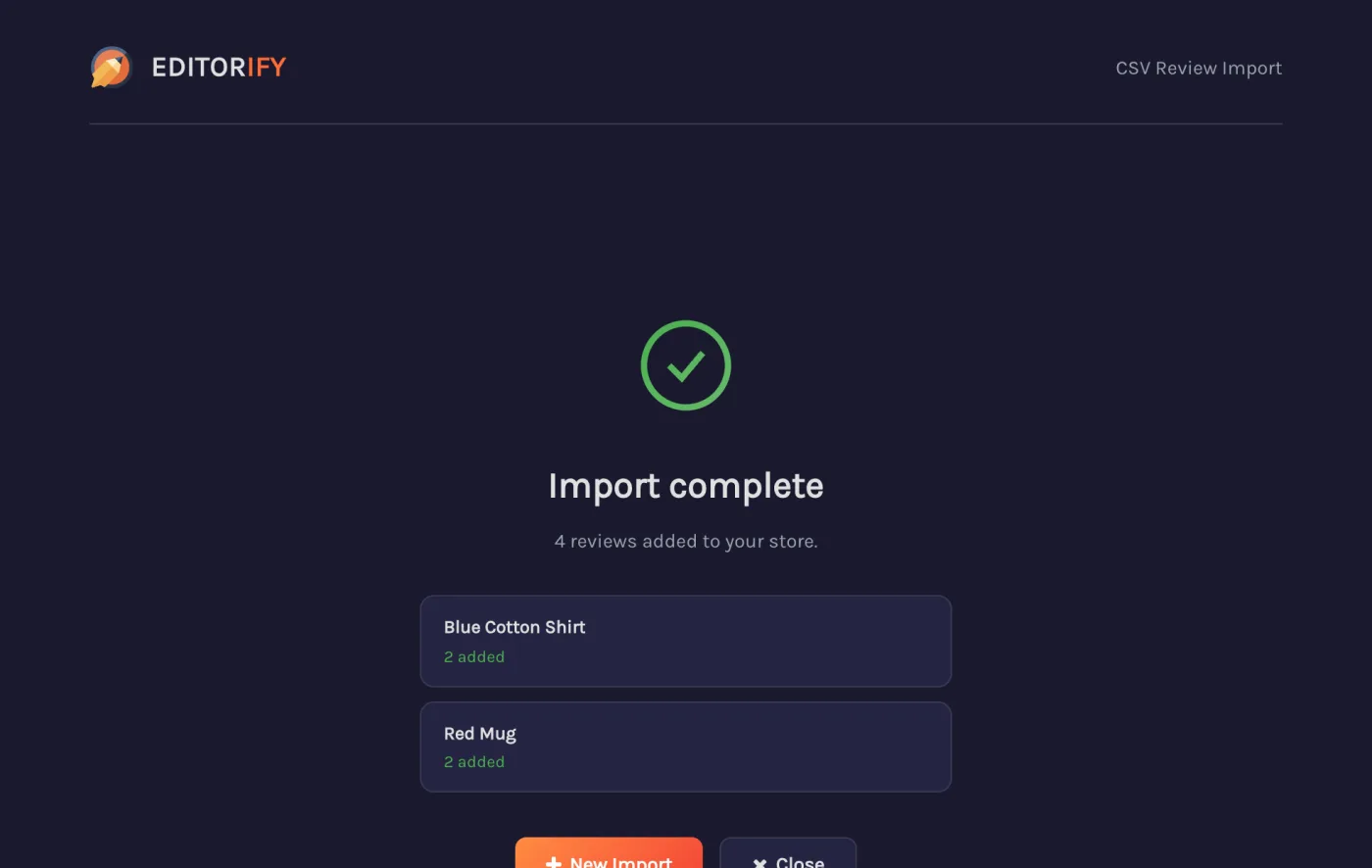
When it finishes, Import complete lists each product with the number of reviews added, already there and failed.
What carries over
Imported: reviewer name, star rating, review text, date, country and review photos (from photo URLs in the file). When a review has a title but no text, the title becomes the text.
Not imported: your replies to reviews and verified-buyer badges.
Dates are read in the common formats, including European day-first dates and spreadsheet date numbers.
Accented names from European files saved in older Excel formats come through correctly.
Large files and interrupted imports
Reviews are sent in batches. If the connection drops part way, the page says how far it got, for example The import stopped after 150 of 400 reviews, and the button changes to Continue import. Click it to carry on from there. Reviews that were already sent are not sent twice. Keep the tab open until the import finishes; the page warns you if you try to leave mid-import.
FAQ
Can I import the same file twice?
Yes. Reviews already on a product are counted as already there and skipped, so you don't get duplicates.
My file has no product column. What now?
All reviews then form one group. Assign that group to the product they belong to. To split reviews across products, add a product name or handle column in a spreadsheet first.
Some products did not match.
The page says No store product has the same name. Click the pencil next to the group and search for the product.
The page asks me to sign in.
Sign in to your Editorify account in the same Chrome profile, then return to the tab. It checks again when you come back.
Can I export my Editorify reviews?
Yes. See How to export reviews to a CSV file.
Still stuck? Contact support or email support@editorify.com.