 Editorify
What’s new in the Editorify extension 5.7
The new design and features of the Editorify Chrome extension, part by part.
On this page
Version 5.7 of the Editorify Chrome extension has a new design and new tools for picking, editing and importing reviews. It opens in its own window next to the product page, shows every review before you import it, and adds Pick best, filters, review editing, product photos and videos, AI translation and CSV import. Chrome updates the extension for you; this guide shows each part of the new version and links to the full guide for it.
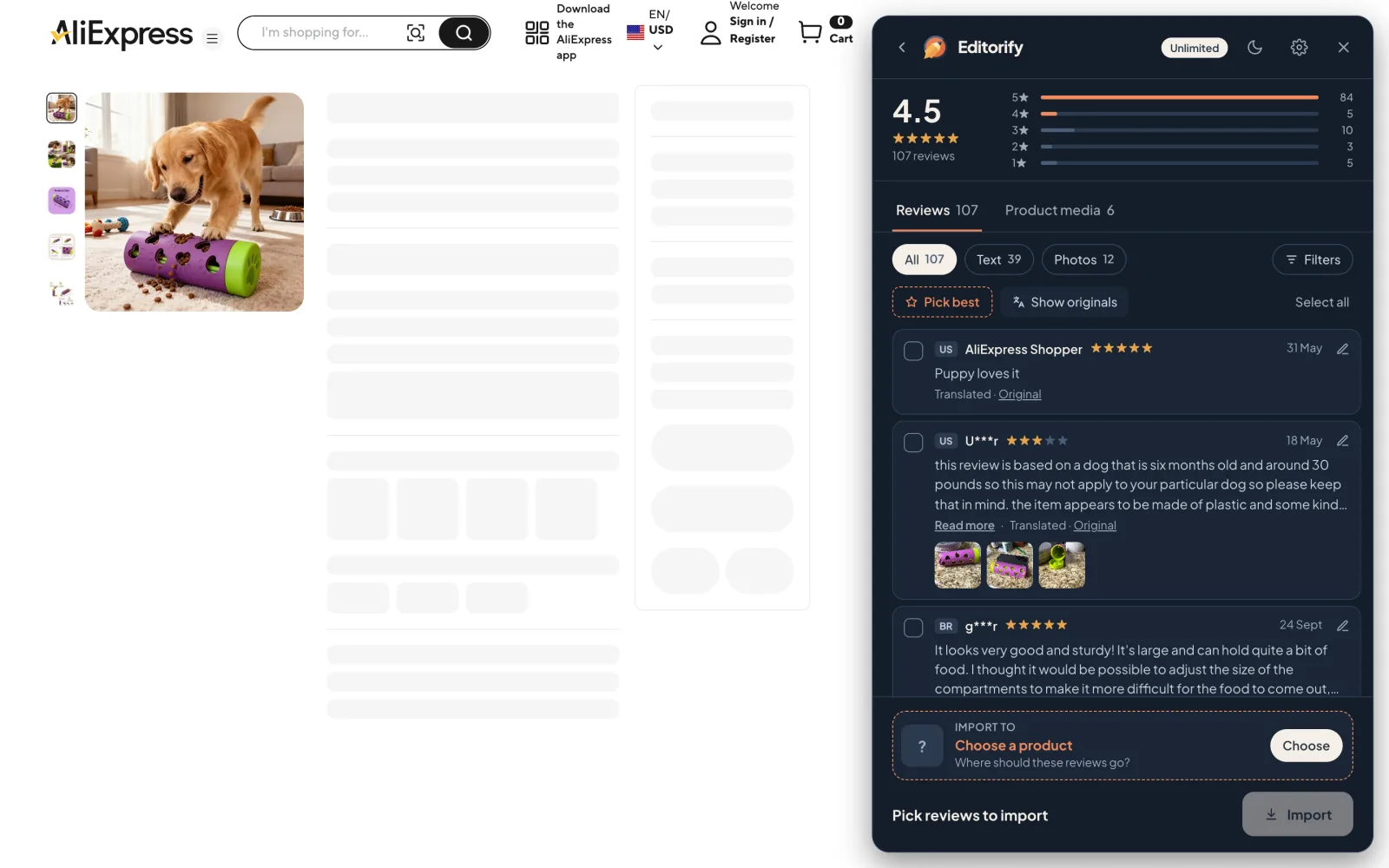
Get the new version
Chrome updates the Editorify extension on its own, usually within a few hours of a release. To check your version, open chrome://extensions in Chrome and look for Editorify: version 5.7.1 or higher has everything in this guide. If you don’t have the extension yet, add it from the Chrome Web Store.
A new menu
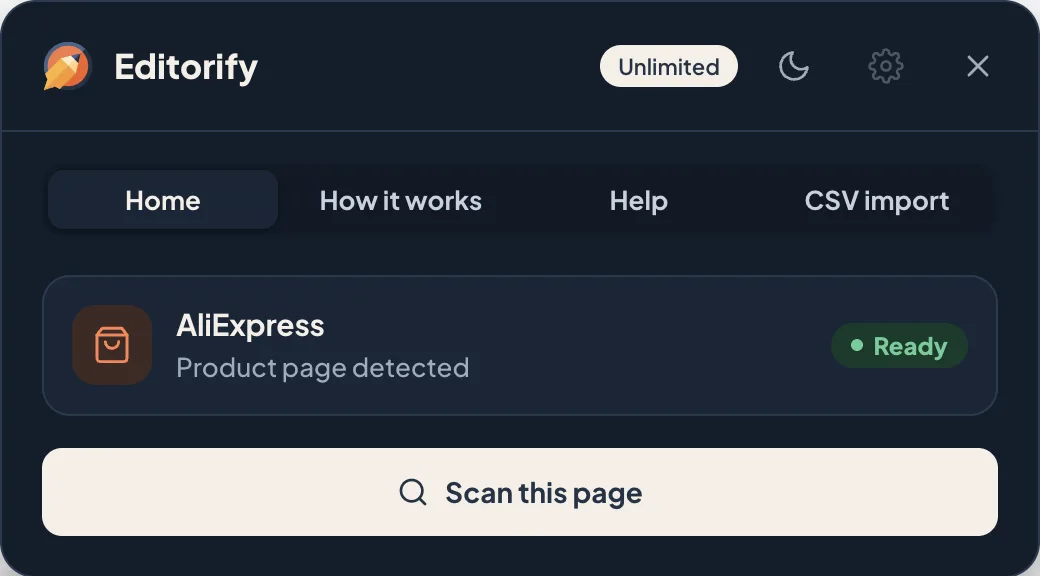
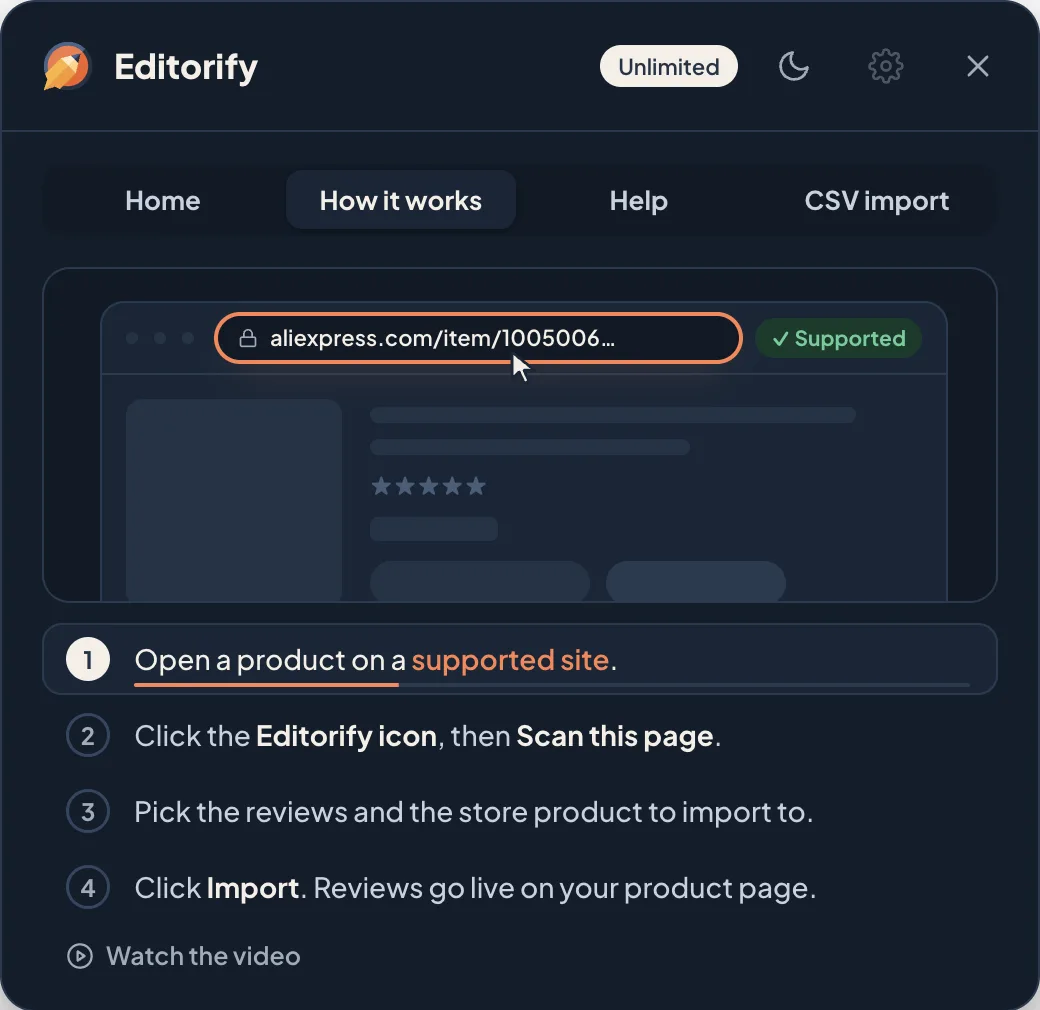
Click the Editorify icon on a product page to open the menu. It tells you whether the page is supported and has four tabs:
Home: the marketplace it found and a Scan this page button.
How it works: the four steps from opening a product to importing, with a video.
Help: links to the Help Centre and to contact us.
CSV import: bring reviews from another app (see below).
The top bar shows your plan, a light or dark theme switch and Settings.
The review editor
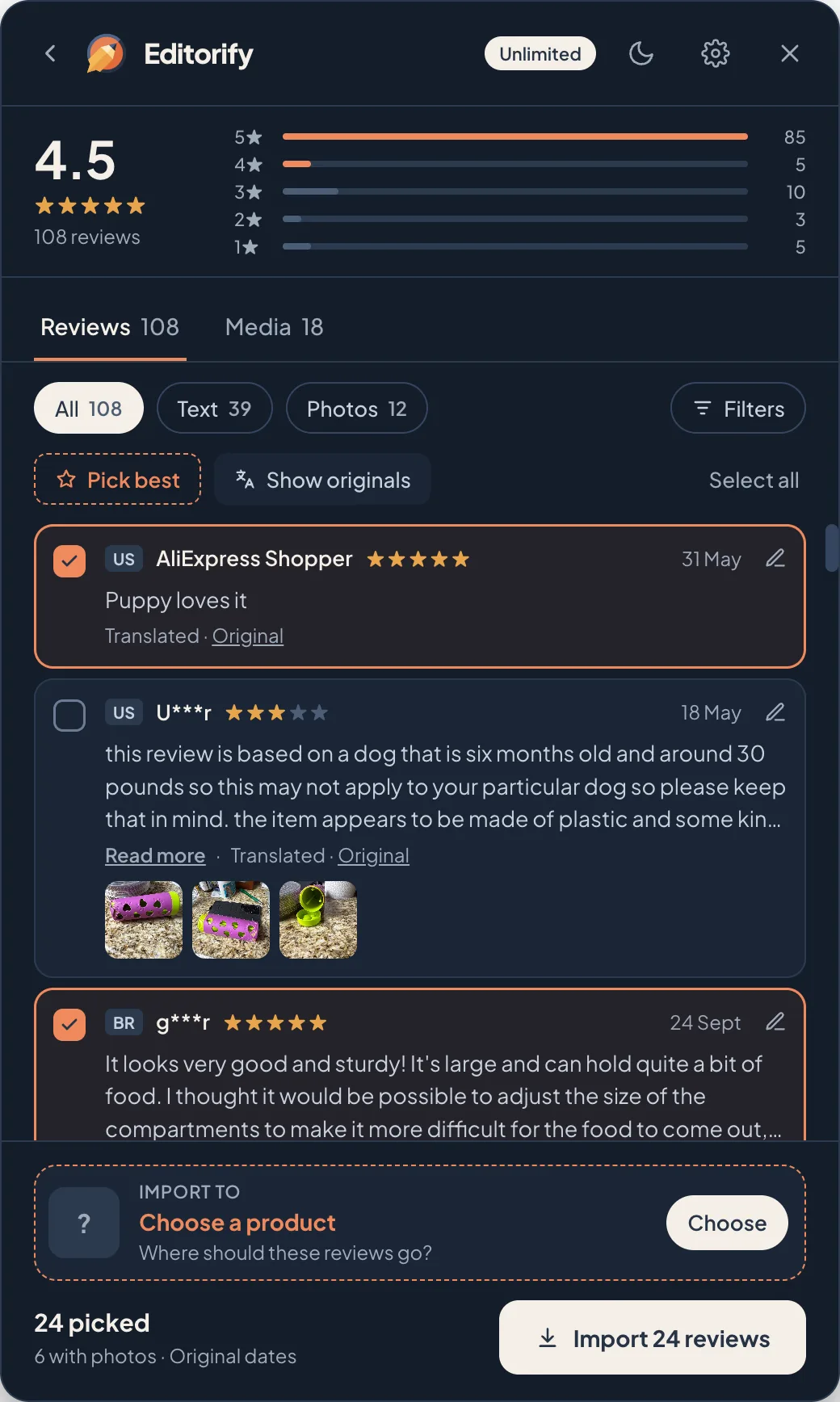
After a scan, the review editor lists every review it found, with the average rating and a breakdown by stars at the top. You can read each review, see its photos, and switch between the original text and a translation. Nothing reaches your store until you click Import.
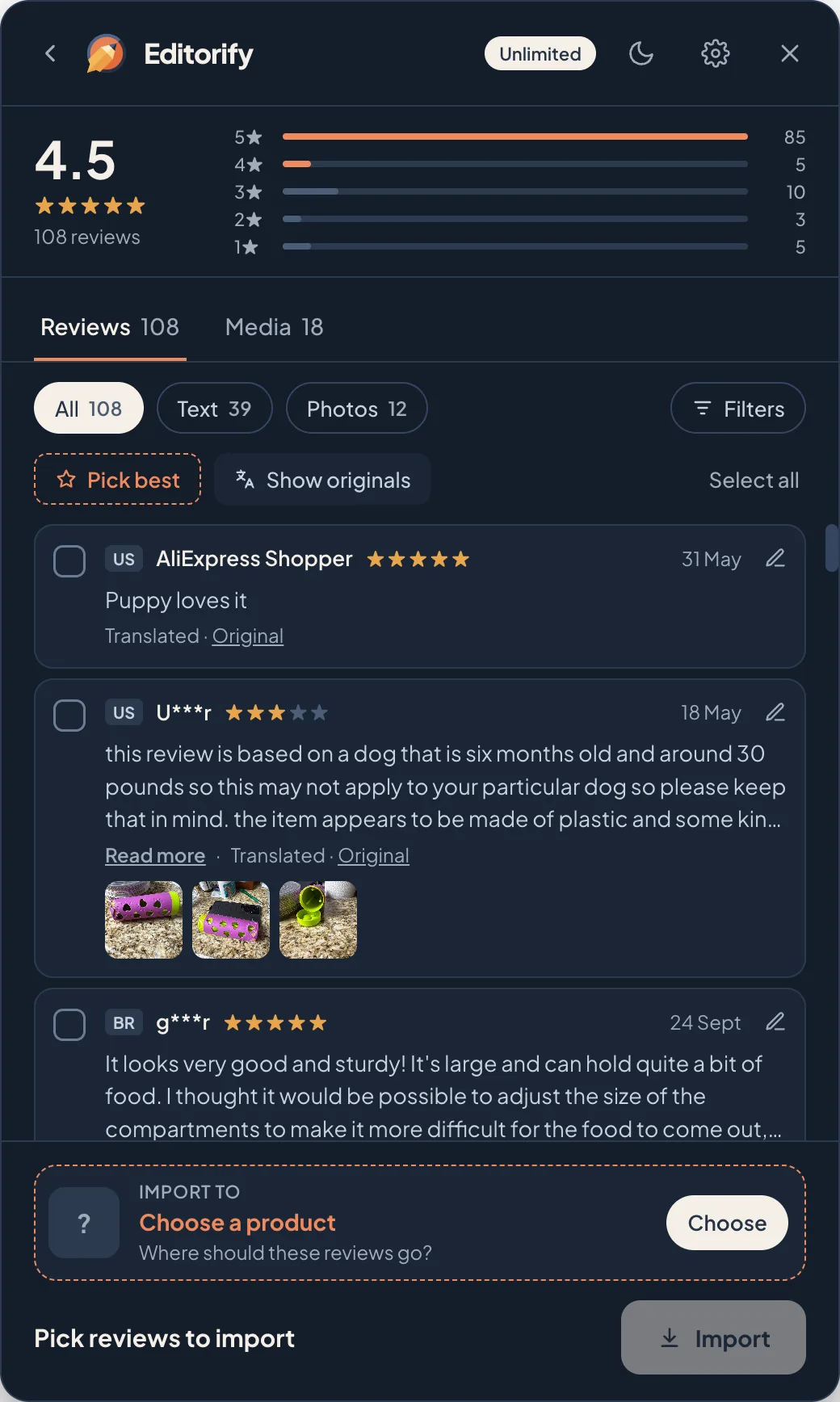
Full guide: How to pick, filter and edit reviews before you import.
Pick best
Pick best ticks every 4 and 5 star review that has text, in one click. The footer shows how many you picked and how many have photos. You can still tick or untick any review by hand, or use Select all.
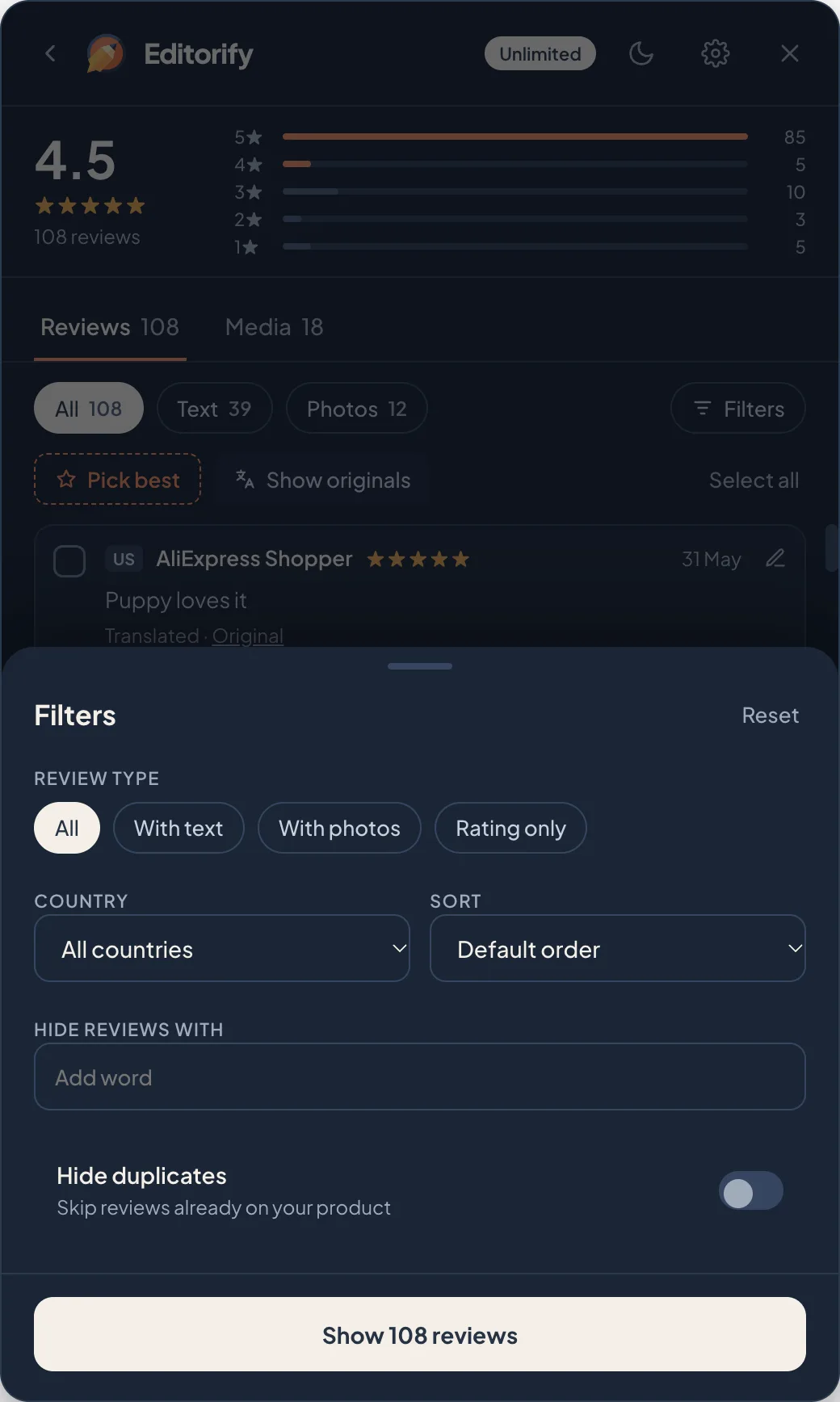
Filters
Click Filters to narrow the list by review type (with text, with photos or rating only), country and sort order, hide reviews containing a word, and hide duplicates.
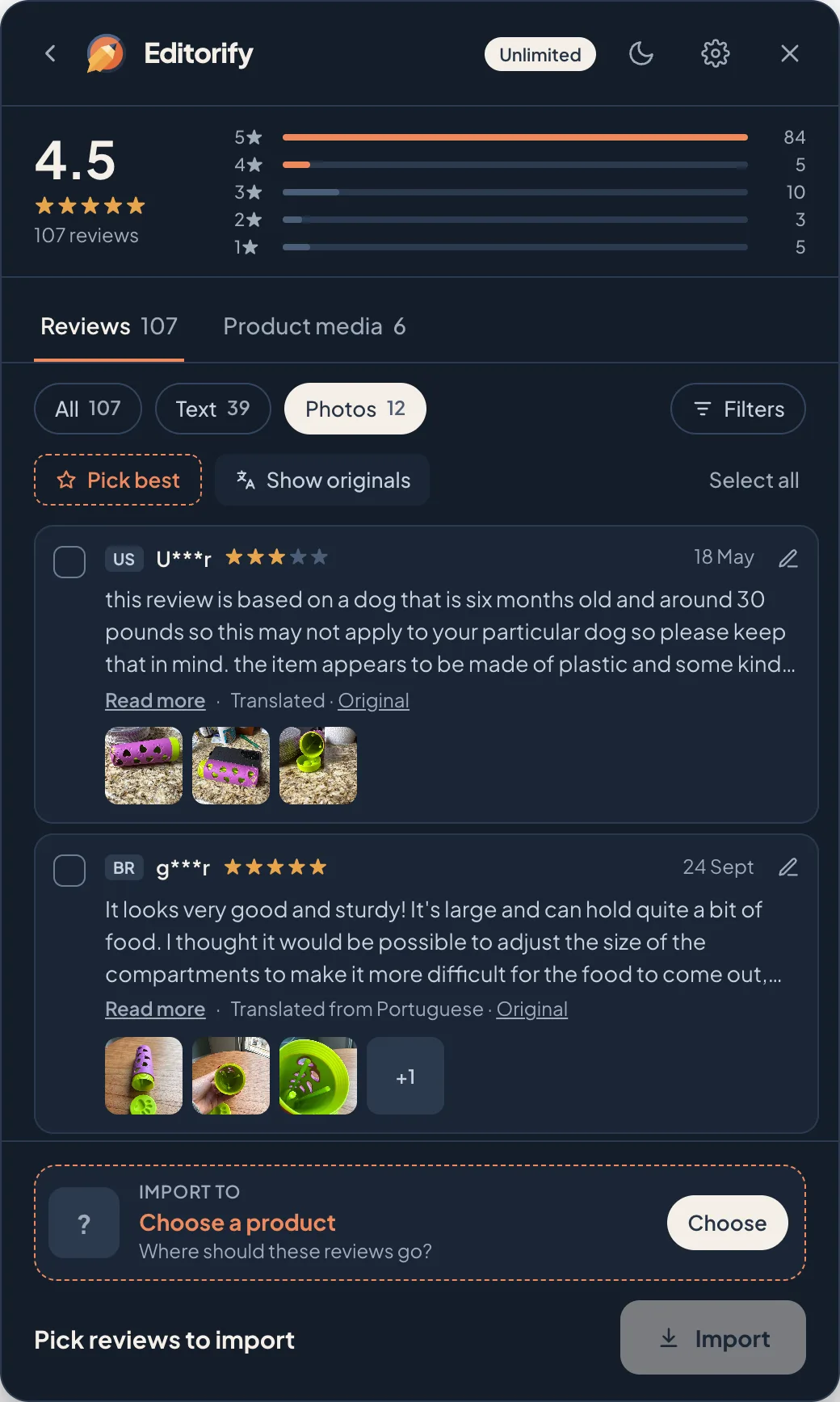
The Photos filter shows only reviews with buyer photos, each with its thumbnails:
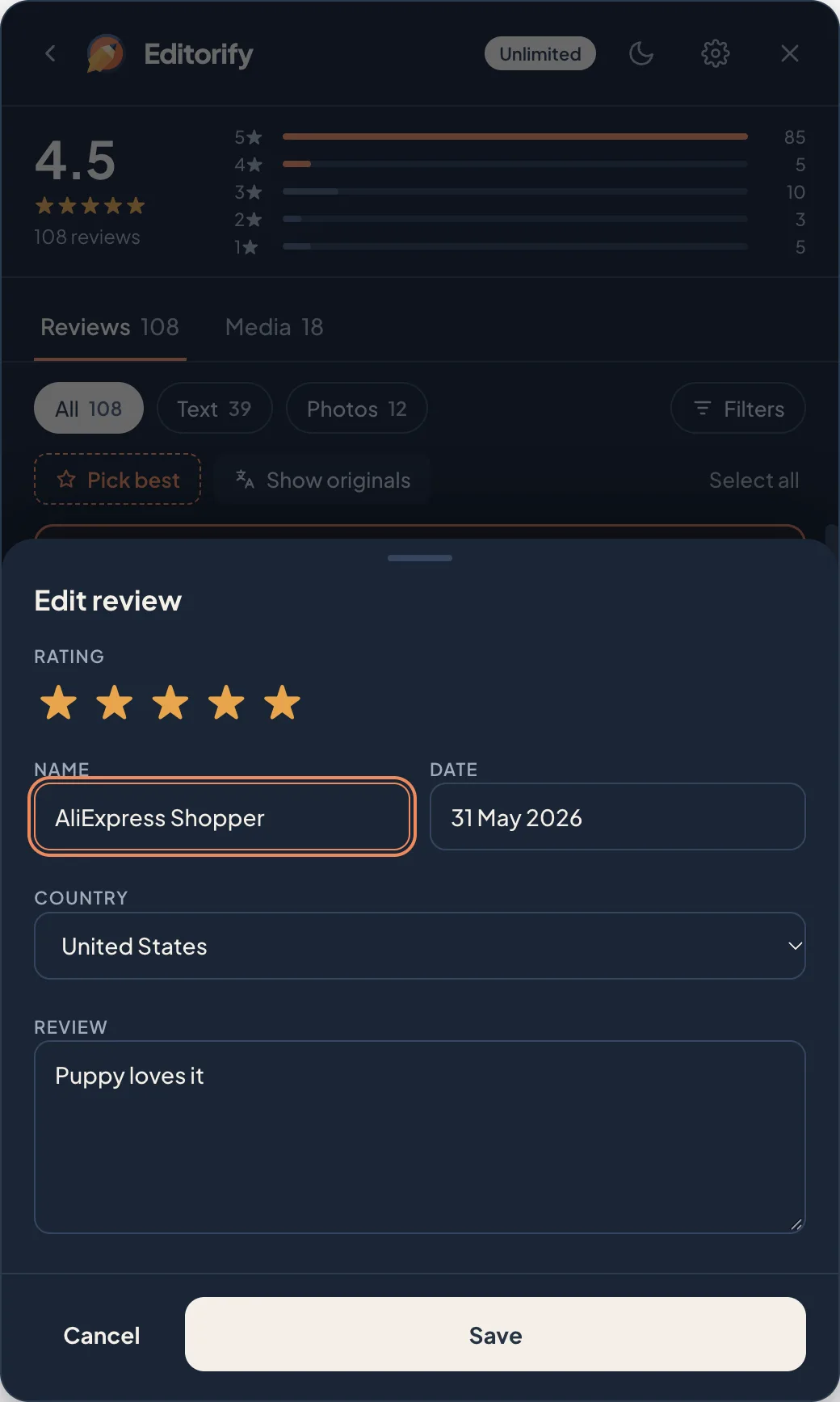
Edit a review before you import
Click the pencil on any review to fix the rating, name, date, country or text before it goes to your store.
Product photos and videos
The Product media tab lists the supplier’s own product videos and images. Pick the ones you want and they are added to your store product: videos to the product description and images to the product’s images. It works on YouTube video pages too.
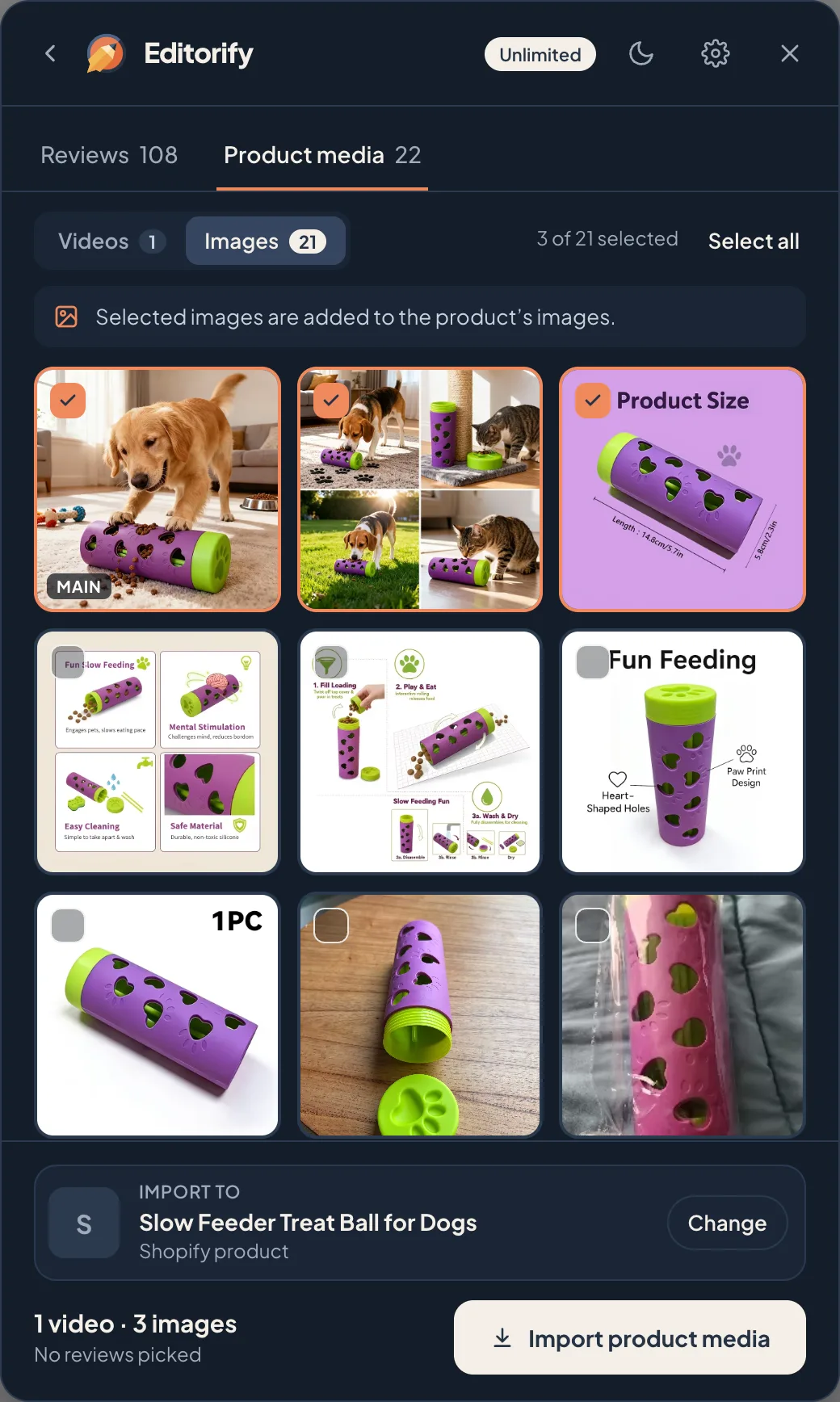
Full guide: How to import videos to your store.
AI translation
Translate the reviews you pick into your store’s language before you import them. Set your language once under Translate to in Settings, and use Show originals to compare. AI translation is included with every paid plan.
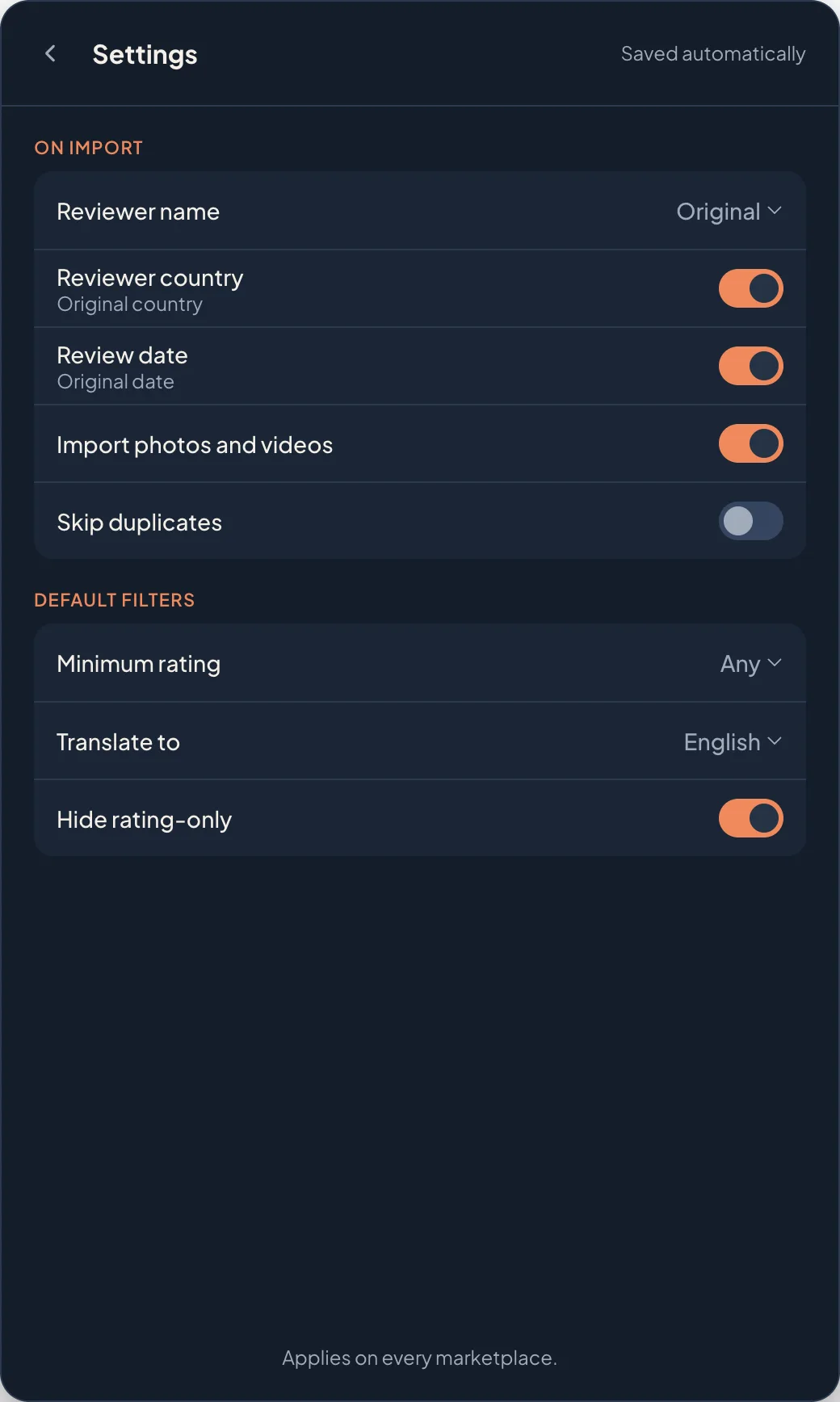
Full guide: How to translate reviews with AI before you import.
Choose the store product and import
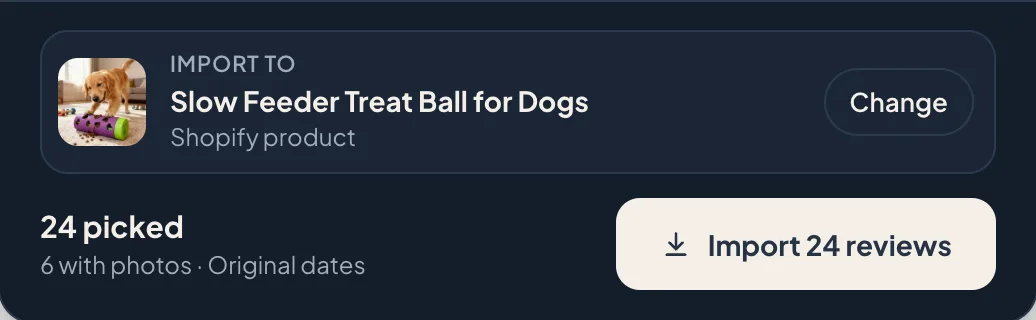
At the bottom of the editor, Import to shows the store product the reviews go to. Click Change to search your products; the closest match is suggested first. Then click Import. On Gold and Diamond you can send the same reviews to up to 5 products at once.
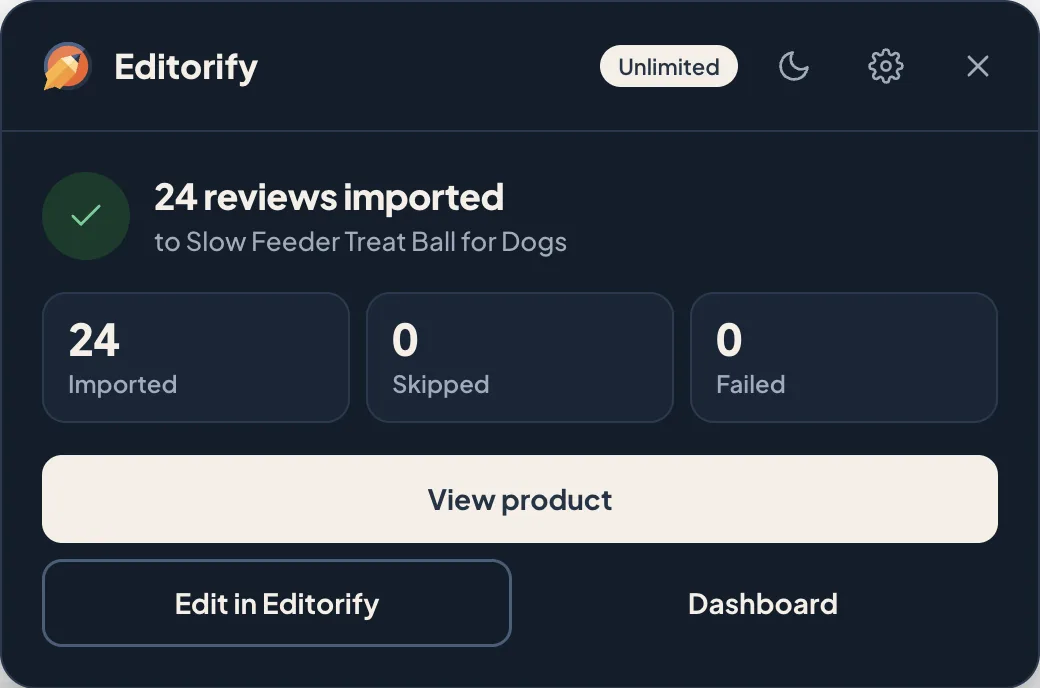
When the import finishes, you see how many reviews were imported, skipped or failed, with a link to the product.
Move reviews from another app with a CSV file
The CSV import tab brings reviews from apps such as Judge.me, Loox, Yotpo and Stamped.io. Upload the export, check the reviews, match them to your products and import. CSV import is included with every paid plan.
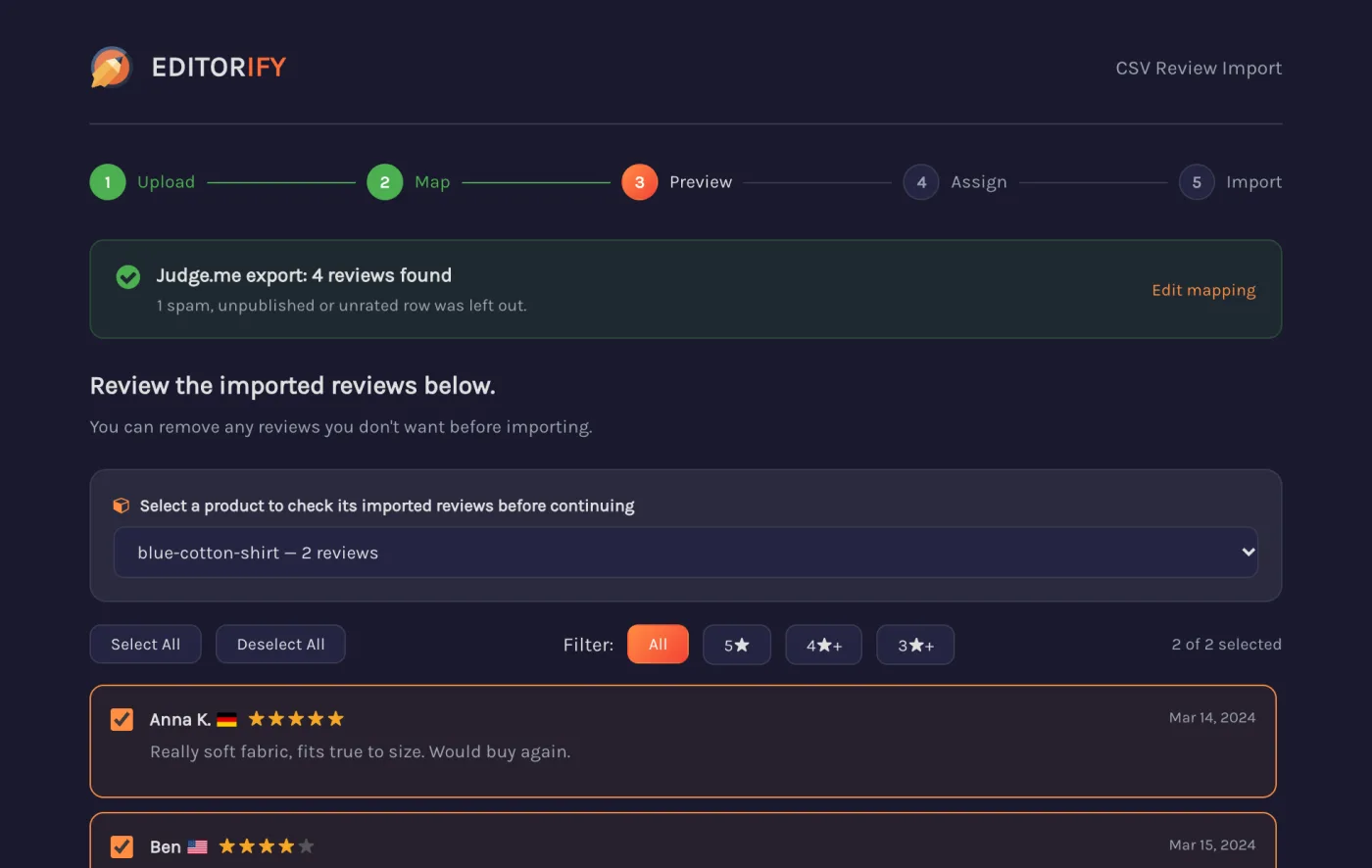
Full guide: How to move your reviews from another app with a CSV file.
Clearer messages
When something stops an import, such as a sign-in, a plan limit or a page with no reviews, the extension says what happened and what to do next, in its own window. Your picks are kept in almost every case.
Every message: Extension messages and how to fix them.
FAQ
Do I need to do anything to update?
No. Chrome updates the extension on its own. If you still see the old design after a day, open chrome://extensions, turn on Developer mode at the top right and click Update.
Does the Free plan get the new design?
Yes. The new menu, the review editor, Pick best and filters work on every plan. The Free plan imports up to 50 reviews from AliExpress. Editing reviews, review photos and videos, AI translation and CSV import need a paid plan. See how to change plan.
Related guides
Still stuck? Contact support or email support@editorify.com.