 Editorify
How to pick, filter and edit reviews before you import
Everything the Editorify review editor does, from Pick best to the import result.
On this page
The review editor is the window the Editorify extension opens after it scans a product page. In it you pick the reviews you want, filter out the ones you don't, fix a name or a typo, and choose the store product they go to. Nothing reaches your store until you click Import, so everything you change here is a draft.
Open the review editor
Open a product page on a supported marketplace and let it finish loading.
Click the Editorify icon in the Chrome toolbar. The Editorify menu opens on the page.
Click Scan this page. The menu grows into the review editor and fills it as reviews load. On a long listing the bottom of the list shows Loading reviews… 60 / 106 until every page is in.
The arrow at the top left takes you back to the menu without losing anything. The menu then shows how many reviews are loaded and picked, with Open editor to go straight back in.
What the editor shows
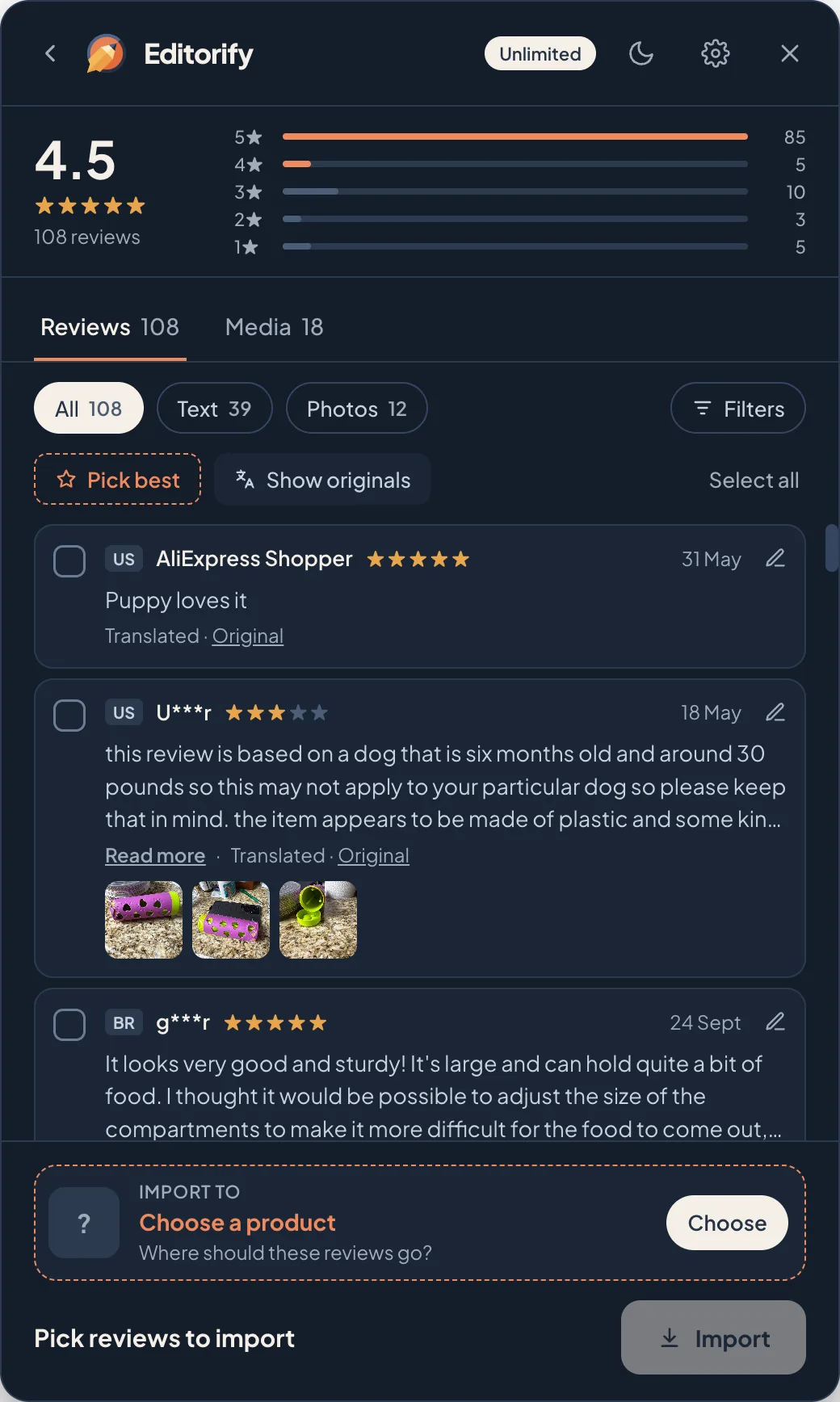
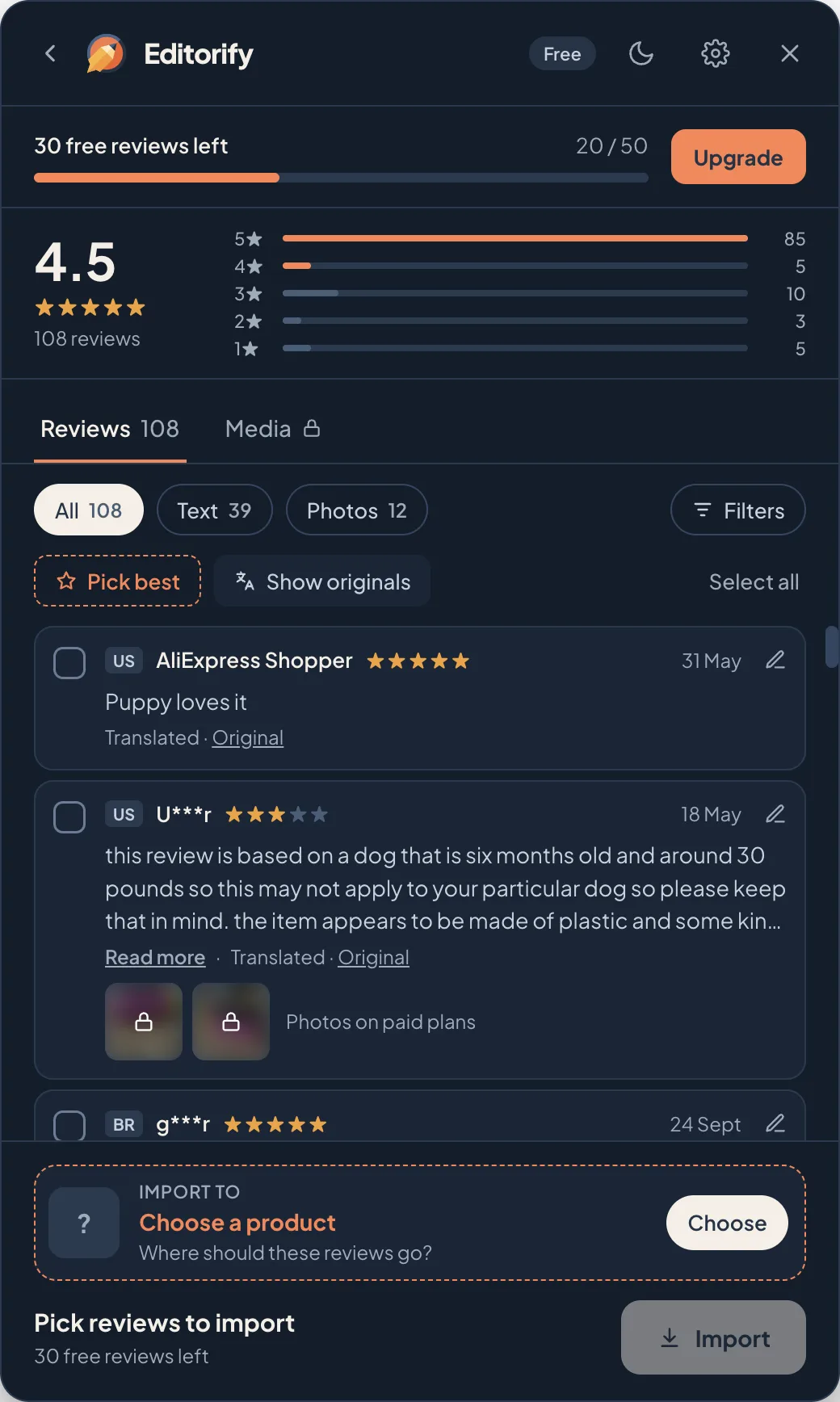
Rating summary. The listing's average, its review count and a bar for each star level. Click a bar to show only reviews with that many stars, and click it again to show all of them.
Reviews and Media tabs. Reviews lists every review. Media shows only the photos and videos that buyers attached to their reviews.
Quick filters. All, Text (reviews with written text) and Photos (reviews with a photo or video), each with its count.
Review cards. Each card has a tick box, the buyer's country, name, stars and date, the text, and any photos. When the marketplace translated a review, the card says Translated with a link to the original.
Import to card and Import button. At the bottom: the store product the reviews go to, how many you picked, and the button that sends them.
The moon icon at the top switches the editor between dark and light. Your choice is remembered.
Pick reviews
One at a time. Click a card or its tick box.
Pick best. Selects every 4★ and 5★ review that has text, in one click. It is the fastest way to a strong first import.
Select all. Selects every review the current filters show.
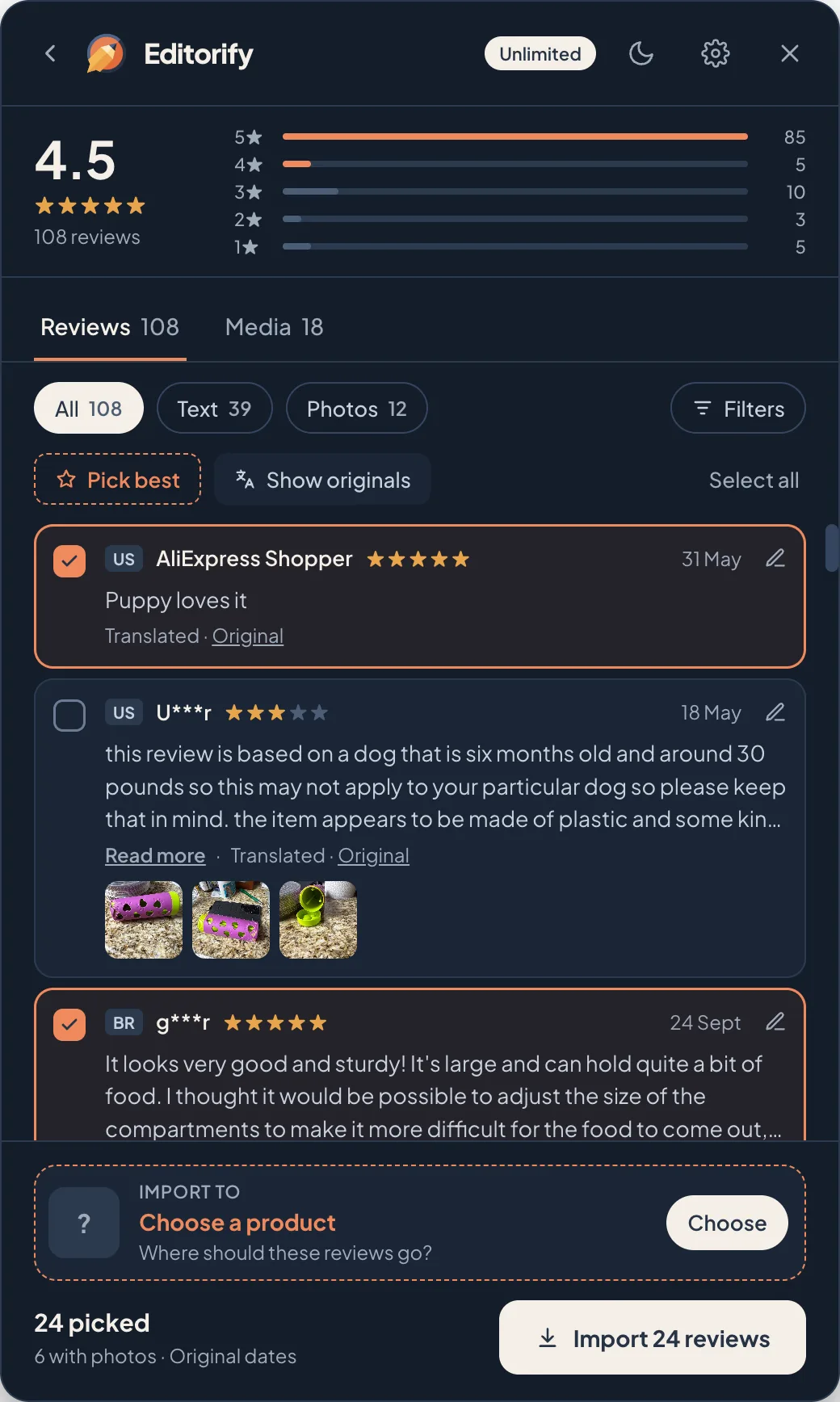
The footer keeps count as you go, for example 24 picked · 6 with photos · Original dates, and the button changes to Import 24 reviews.
Rating-only reviews
Many marketplaces let buyers leave stars without writing anything. Editorify groups these in one row at the end of the list: 12 rating-only reviews · No text. Adds stars to your average. Switch the row on to import them with the rest. They add to the star rating your store shows without adding empty cards to the review list. To have the row on by default, turn off Hide rating-only in Settings.
Filter reviews
Click Filters to narrow the list. The button at the bottom shows how many reviews match, for example Show 105 reviews.
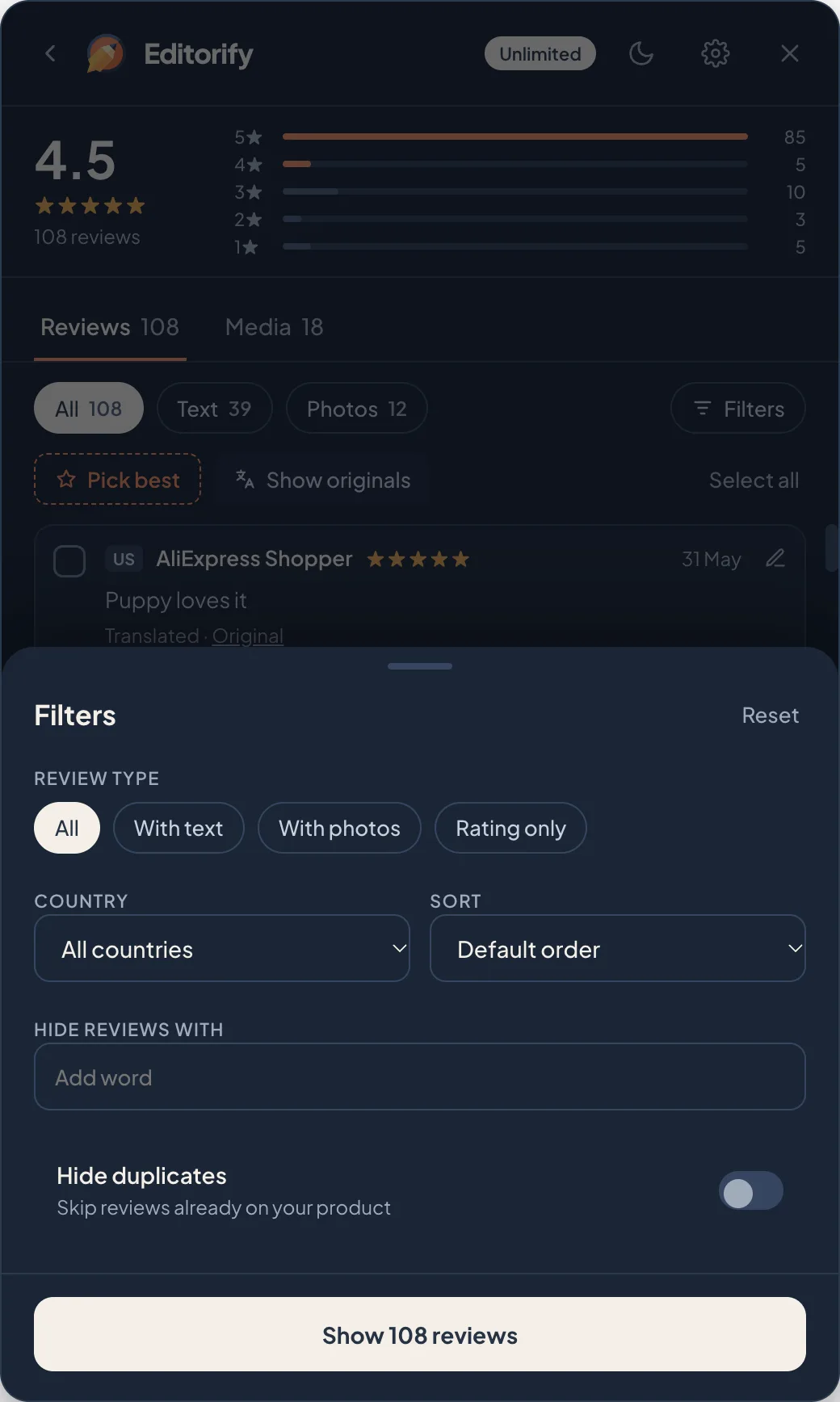
| Filter | What it does |
|---|---|
| Review type | All, With text, With photos, or Rating only. |
| Country | Shows reviews from one buyer country. |
| Sort | Default order, Newest first, Photos first, Highest rating or Lowest rating. |
| Hide reviews with | Type a word and press Enter. Reviews containing it are hidden, for example the supplier's name, "shipping" or "seller". |
| Hide duplicates | Skips reviews that are already on the store product you chose. |
Filters only change what you see. A hidden review is never imported, and a review you ticked stays ticked when you change the filter.
Review photos and videos
Open the Media tab to see every photo and video buyers attached, with filters for Photos, Videos and 5★ only. Clicking a tile selects the review it belongs to. Photos and videos are imported together with their review, so they show on your product page inside that review.
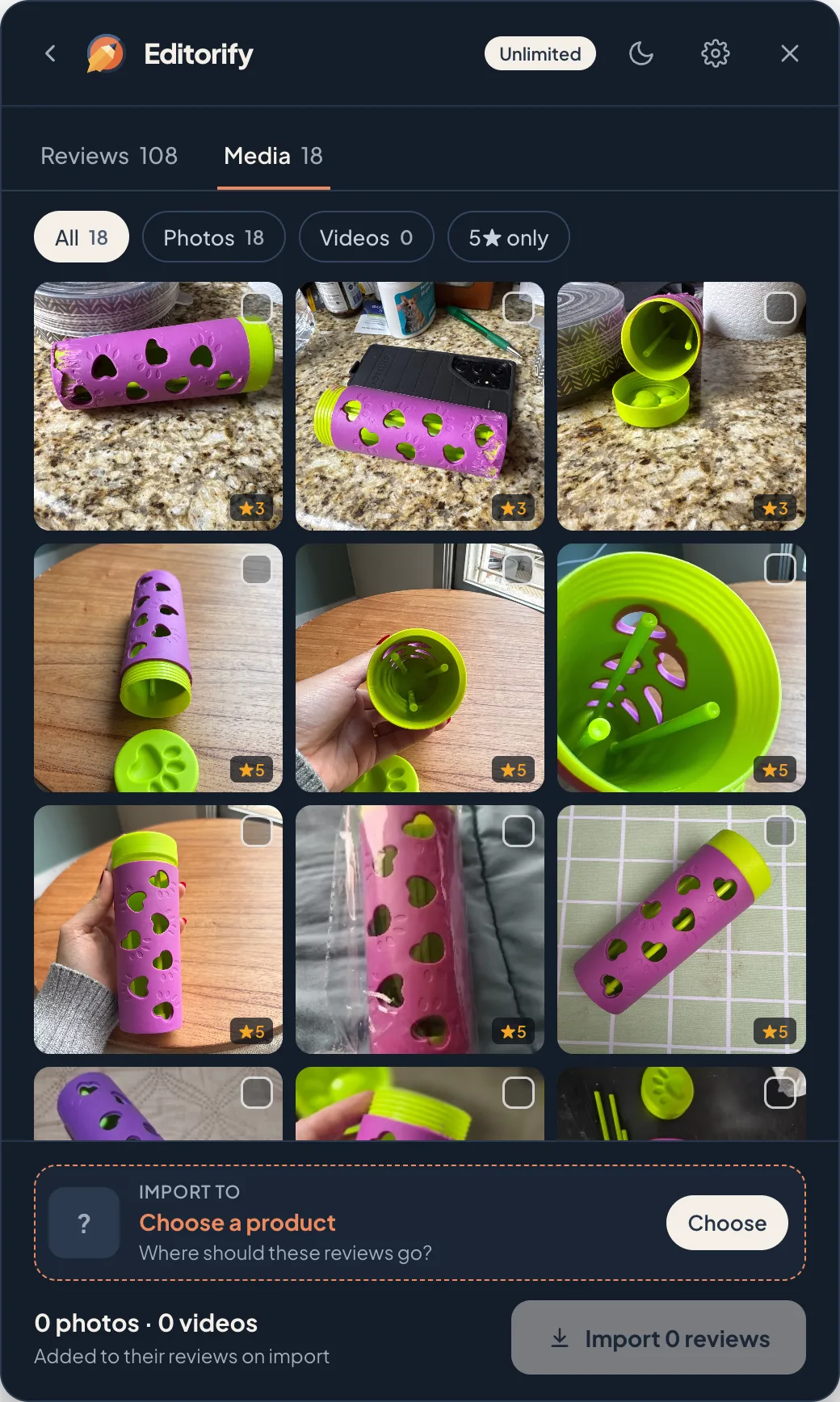
Review photos and videos import on paid plans. To leave them out on a paid plan, turn off Import photos and videos in Settings.
Edit a review before you import
Click the pencil on a card to change its Rating, Name, Date, Country or Review text, then click Save. Use it to remove a supplier's name from the text, fix an obvious typo or shorten a long review. The change applies only to what you import; the marketplace listing is untouched.
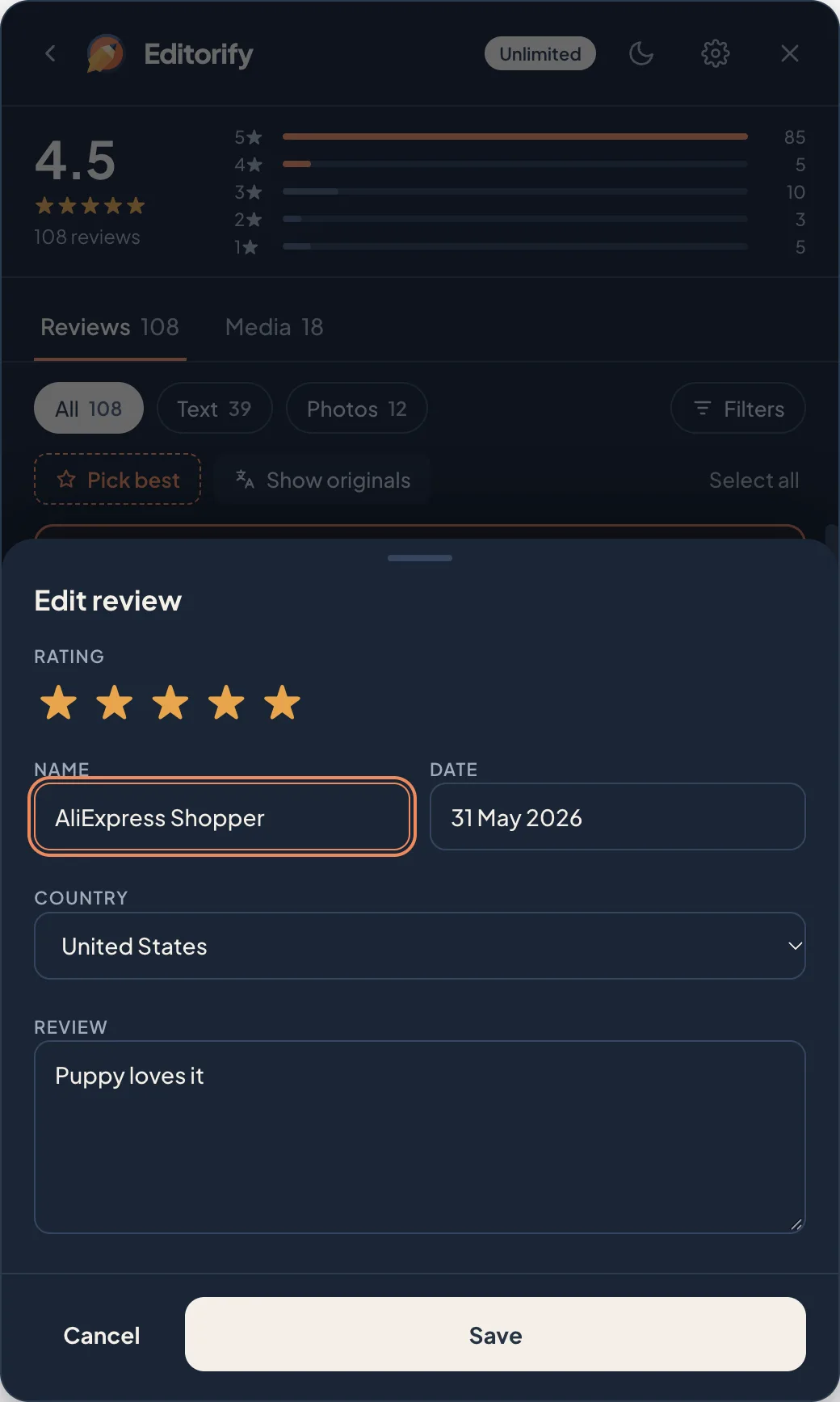
Editing is available on paid plans. On the Free plan, the pencil opens an upgrade prompt instead.
Import settings
The gear icon opens Settings. Changes save on their own and apply on every marketplace.
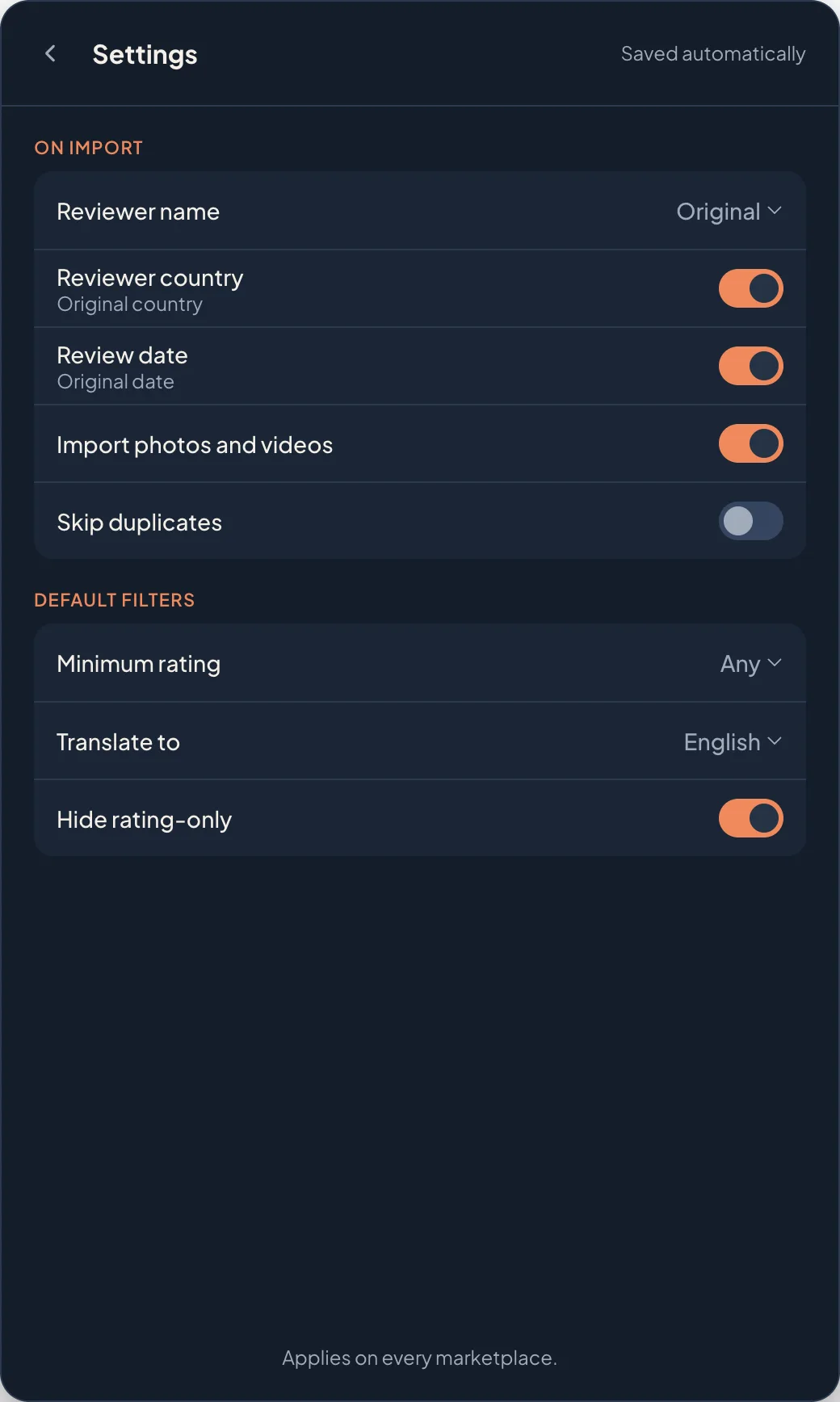
| Setting | Options |
|---|---|
| Reviewer name | Original, Random first name, Random full name, or Random, by country. |
| Reviewer country | On: the buyer's country and flag are kept. Off: no country. |
| Review date | On: the original review date. Off: dated the day you import. |
| Import photos and videos | Paid plans. Off imports text and stars only. |
| Skip duplicates | Starts every scan with Hide duplicates on. |
| Minimum rating | Any, 5★, 4★ and up, 3★ and up, or 2★ and up. Applied to every scan. |
| Translate to | The language AI translation writes in. Paid plans; see AI translation. |
| Hide rating-only | On: rating-only reviews are left out unless you switch their row on. |
Choose the store product
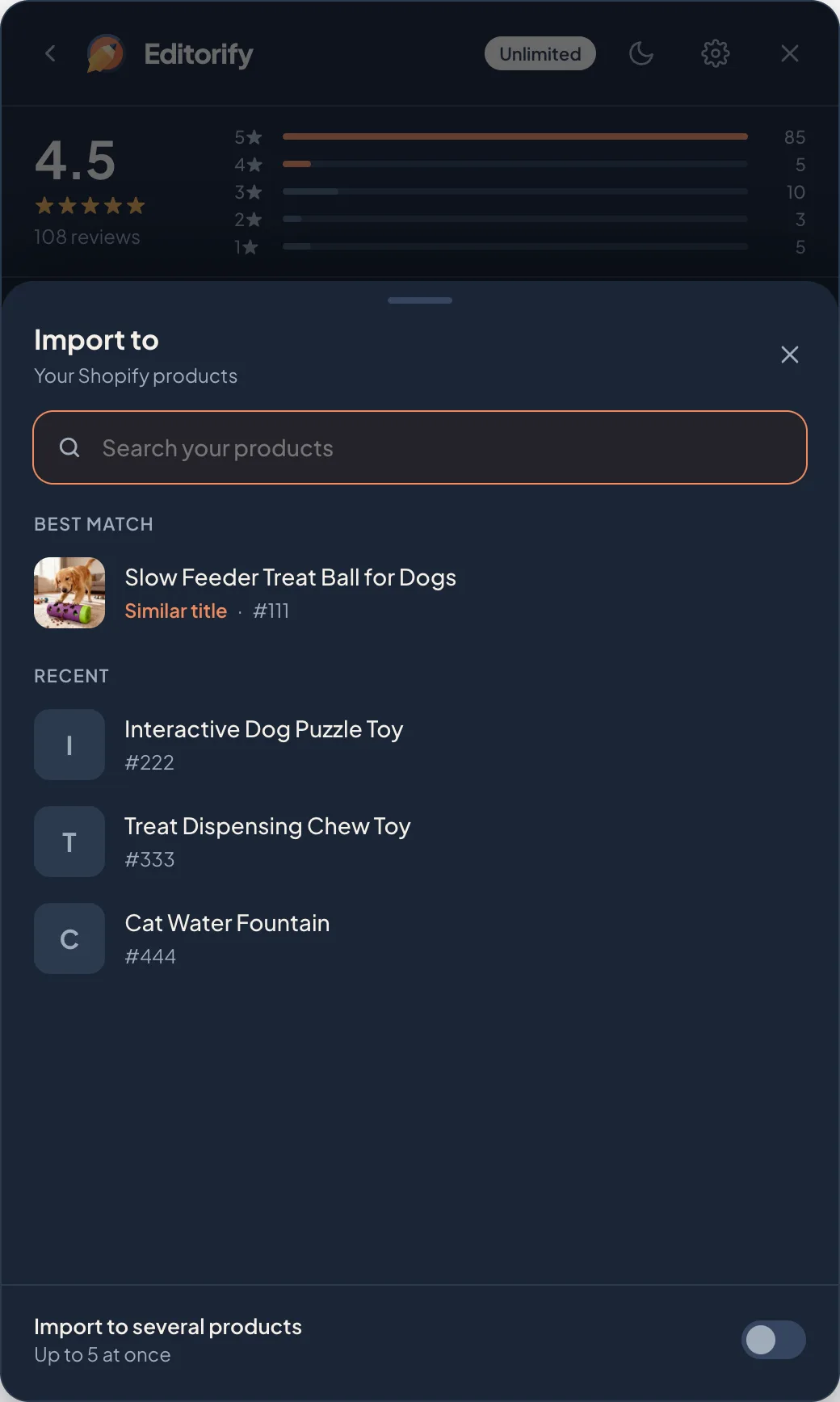
Click Choose in the Import to card. The list shows your store's products, with the closest title first under Best match. Search by name if it isn't there. If you click Import before choosing, the list opens for you.
Variant images. After you choose a product, Variant images (optional) lets you pick an image from the marketplace page for each variant of your product.
Several products. On Gold and above, turn on Import to several products to send the same reviews to up to 5 products at once. See importing to several products.
Import
Click Import. The editor folds back into the menu while the reviews are sent, then shows the result: how many were imported, how many were skipped because they were already on the product, and how many failed.
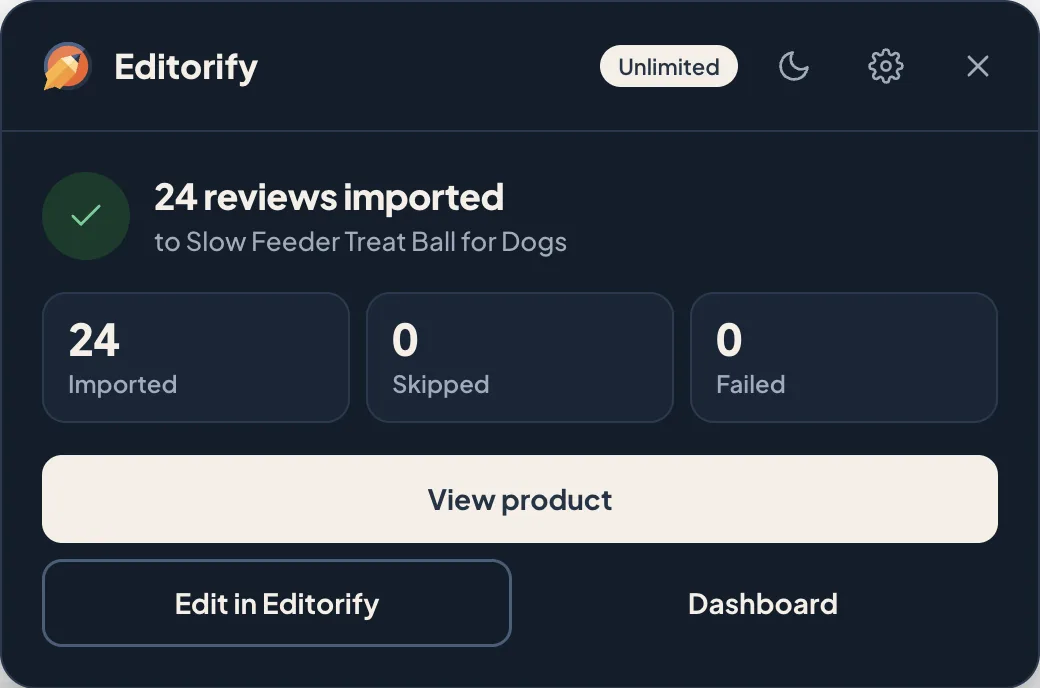
View product opens the product page in your store. If the product is a draft on Shopify, the button reads Preview draft and opens Shopify's preview, because a draft has no public page yet.
Edit in Editorify opens this product's reviews in your Editorify dashboard.
If some reviews failed, click Retry. Only the failed ones are sent again.
What the Free plan includes
| Free | Premium | Gold and Diamond | |
|---|---|---|---|
| Marketplaces | AliExpress | All 8 | All 8 |
| Reviews | 50 per store | Unlimited | Unlimited |
| Review photos and videos | No | Yes | Yes |
| Edit before import | No | Yes | Yes |
| AI translation | No | About 200 reviews a month | About 2,000 reviews a month |
| Import to several products | No | No | Up to 5 at once |
On the Free plan, a bar at the top of the editor counts your free reviews, for example 30 free reviews left · 20 / 50. When you reach a paid feature, a short upgrade prompt opens inside the editor; Not now closes it and keeps your picks. See How to change plan.
FAQ
Does the editor change the marketplace listing?
No. It reads the reviews on the page. Edits, filters and translations apply only to what you import.
Can I import the same review twice?
Turn on Hide duplicates and reviews that are already on the chosen product are hidden. The result also counts any that were skipped as already there.
Do I lose my picks if I go back to the menu?
No. The menu shows how many reviews are loaded and picked; click Open editor to return to them. Reloading or leaving the page starts a new scan.
Something went wrong. Where do I look?
Every message the extension can show is listed in Extension messages and how to fix them.
Still stuck? Contact support or email support@editorify.com.