 Editorify
Your new Editorify dashboard
A tour of the redesigned dashboard, page by page.
On this page
The Editorify dashboard has a new design. Every page you know is still there, in a clearer layout: a side menu grouped into Menu, Settings and Resources, a light and a dark theme, live previews next to your settings, and a menu bar at the bottom of the screen on phones. Your reviews, products and settings are exactly as they were. This guide walks through each page.
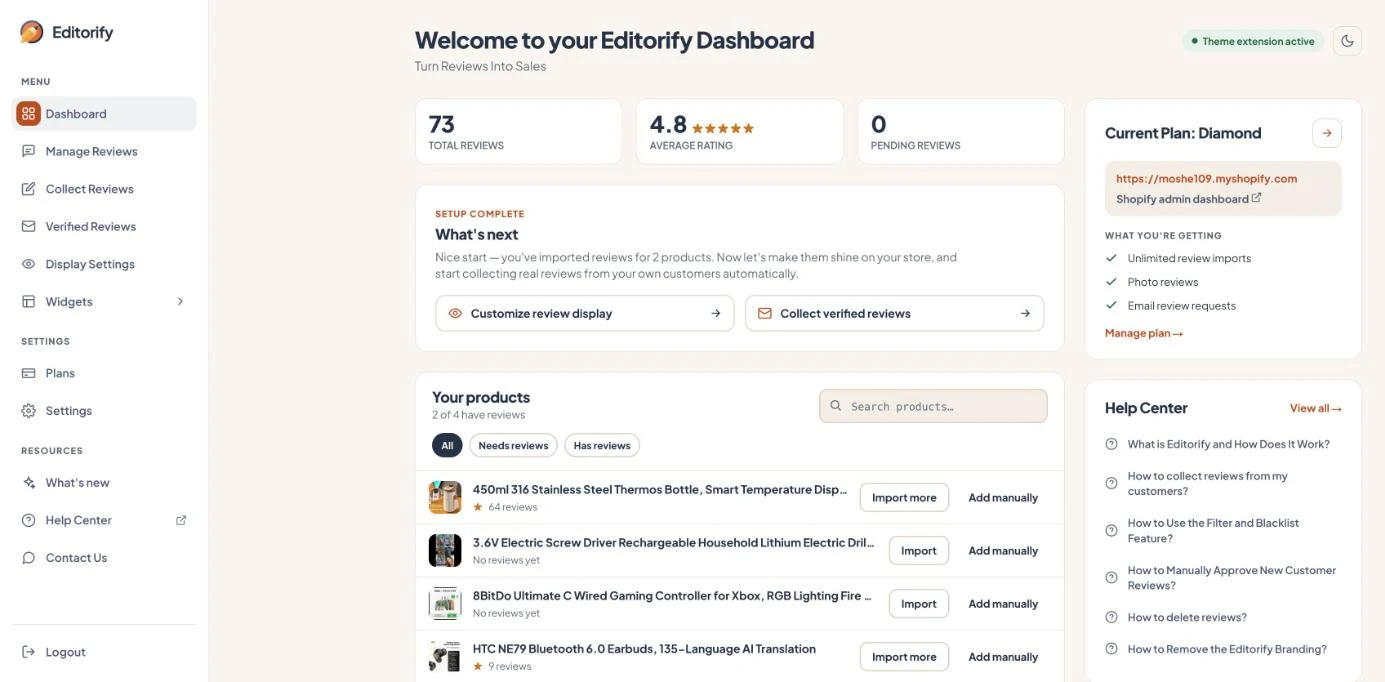
The side menu
Menu: Dashboard, Manage Reviews, Collect Reviews, Verified Reviews, Display Settings and Widgets (Showcase page and Homepage Testimonials).
Settings: Plans and Settings.
Resources: What’s new, Help Center and Contact Us.
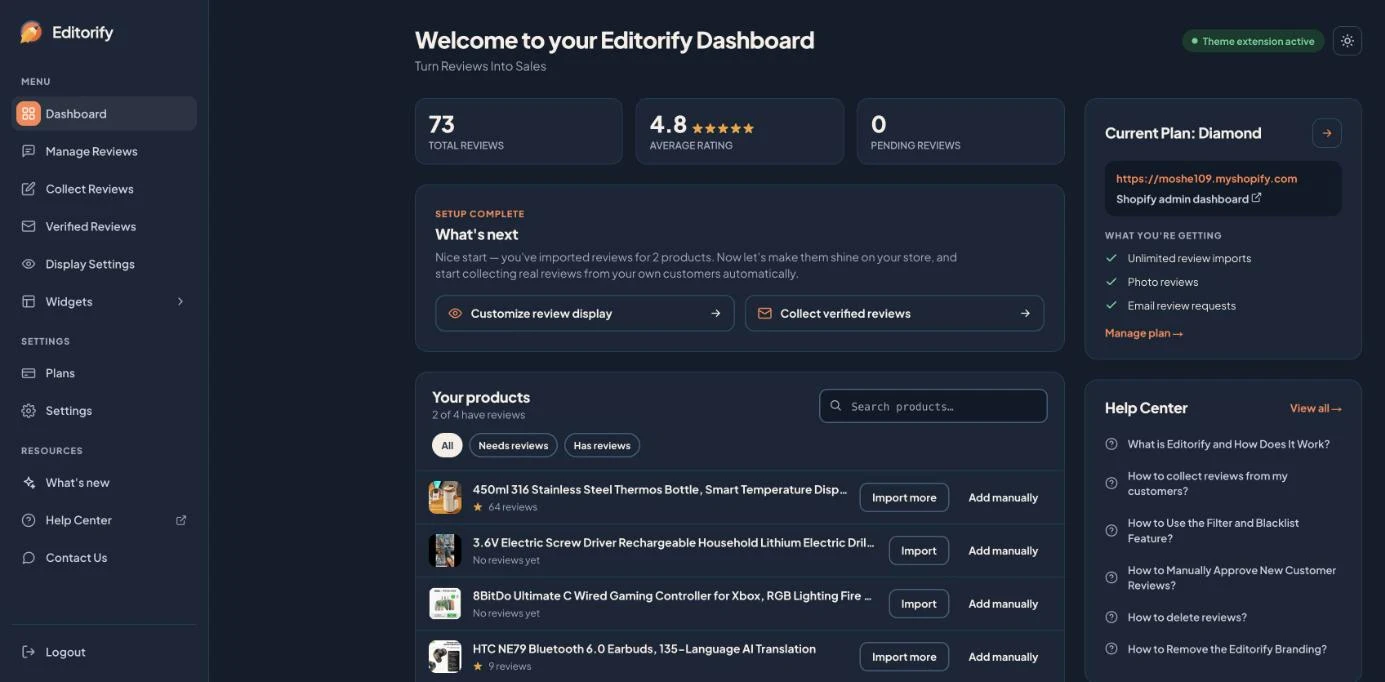
The sun or moon button at the top right of each page switches between the light and the dark theme. The dashboard remembers your choice.
Dashboard home
The home page shows how your reviews are doing and what to do next:
Total reviews, average rating and pending reviews at the top.
What’s next: suggested next steps, such as customising how reviews look or collecting verified reviews.
Your products: every product with its number of reviews. Search, filter by Needs reviews or Has reviews, and click Import or Add manually on any product.
Current plan with what it includes, your store link, and Help Center articles.
The top right shows whether the Editorify widget is active on your store.
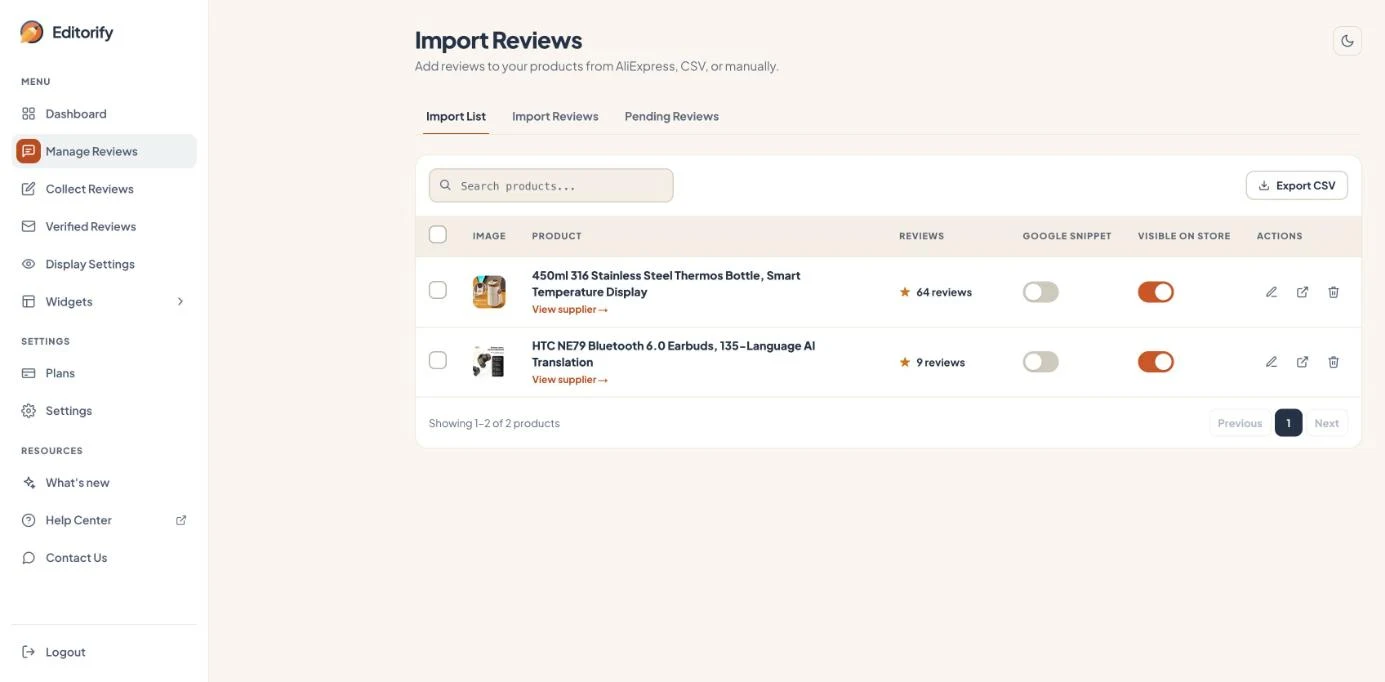
Manage Reviews
Three tabs: Import List (your products with reviews), Import Reviews and Pending Reviews (reviews waiting for your approval). In the Import List you can turn the Google snippet and store visibility on or off per product, edit, view or delete, and export your reviews to a CSV file.
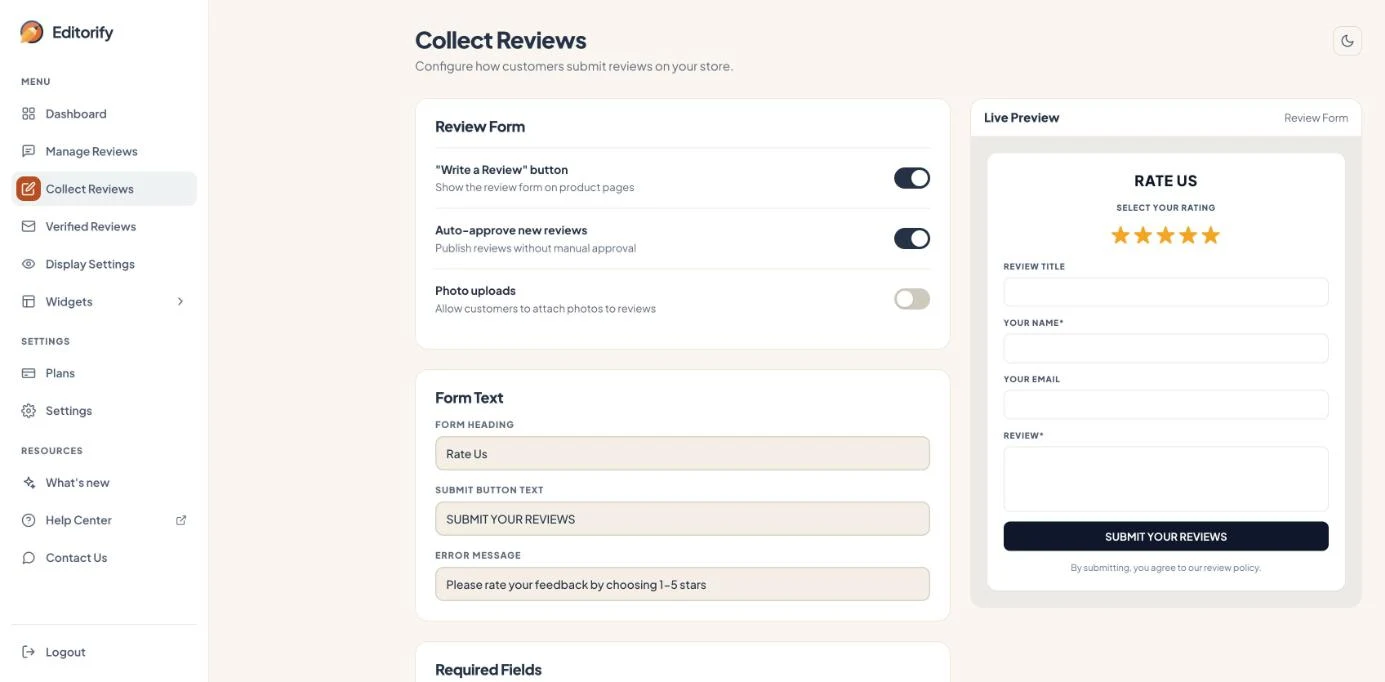
Collect Reviews
Set up the review form shoppers use on your product pages: the Write a Review button, auto-approval, photo uploads, the form texts and which fields are required. The live preview on the right updates as you change it.
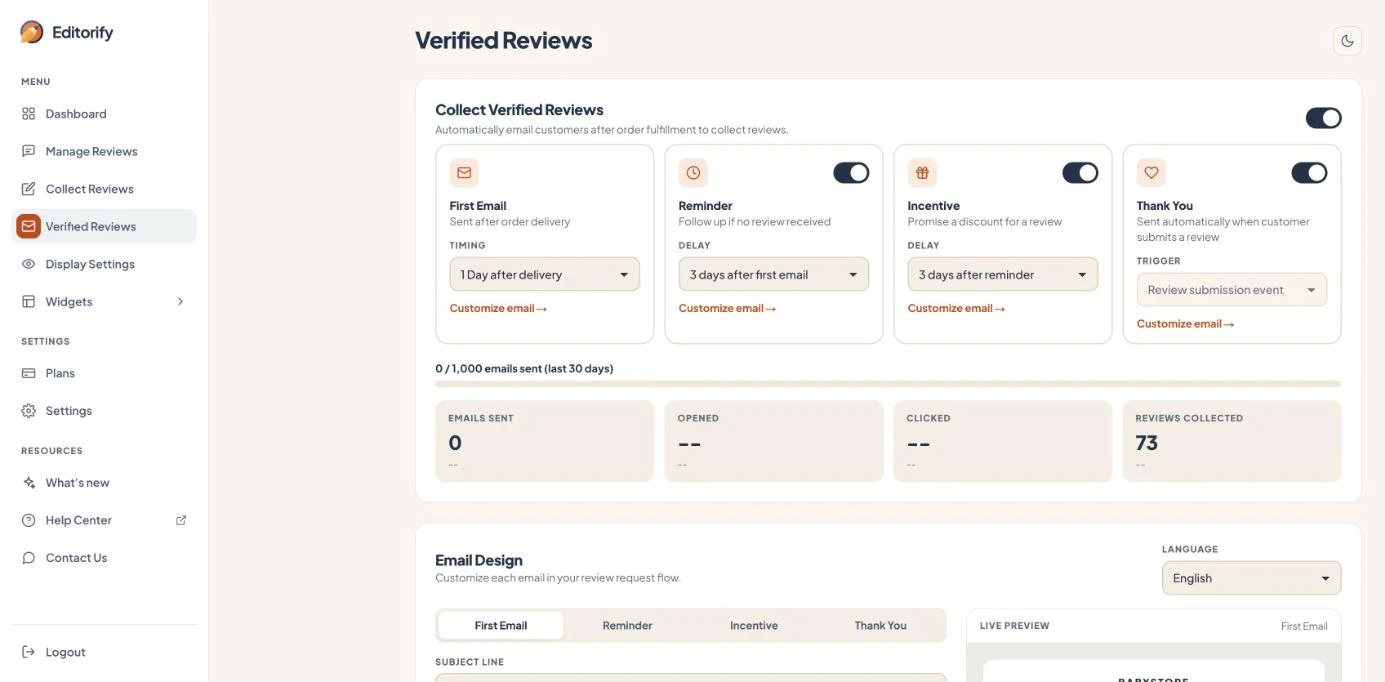
Verified Reviews
Turn on review request emails and set each step of the flow: the first email after delivery, a reminder, an incentive and a thank-you. The page shows emails sent, opened, clicked and reviews collected, and below it you edit each email with a live preview.
Display Settings
Choose how reviews look on your store: the design (Modern or Classic), list or grid layout, star size and spacing, colours, what each review shows, filters, language and more. The live preview on the right shows your changes on a desktop or phone, and every change saves on its own.
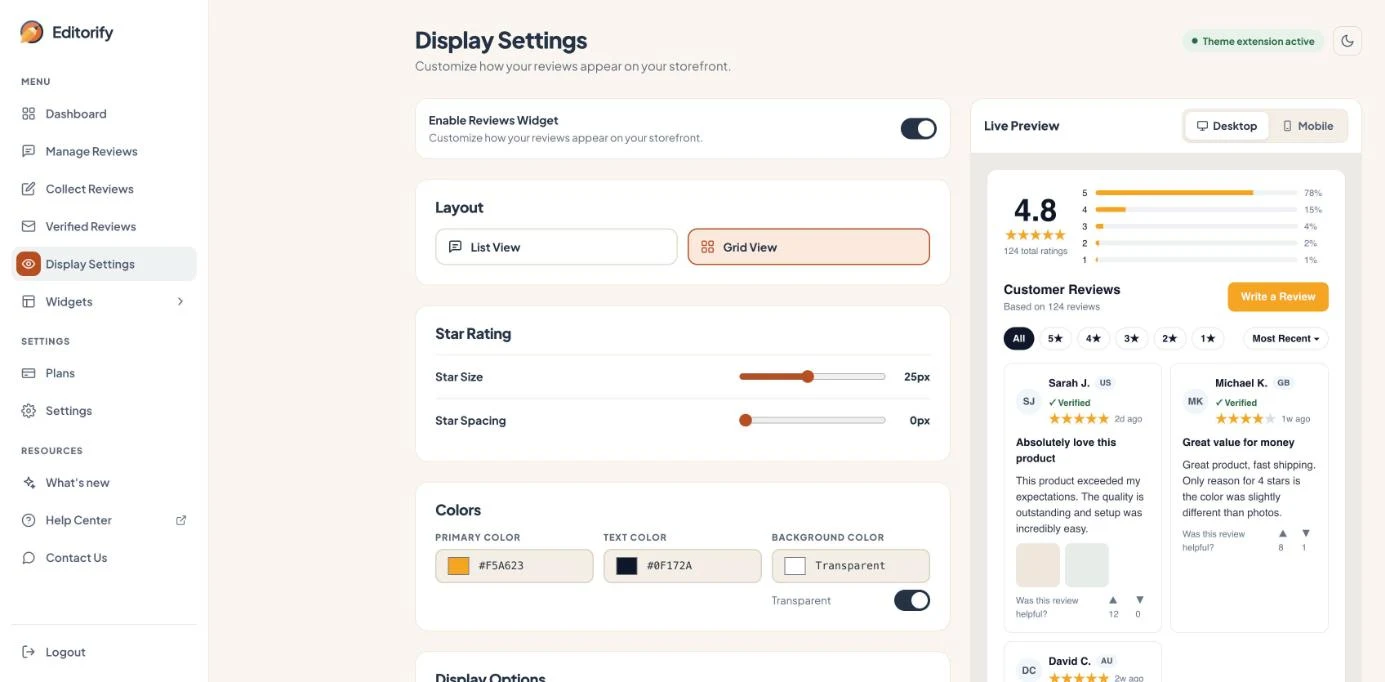
To switch your product pages to the new Modern review design, see How to switch to the Modern review design.
Widgets
Widgets opens two pages, each with a live preview:
Showcase page: a page on your store with reviews from the products you choose.
Homepage Testimonials: a carousel of your best reviews on your homepage, with the heading, number of reviews, minimum rating and auto-scroll.
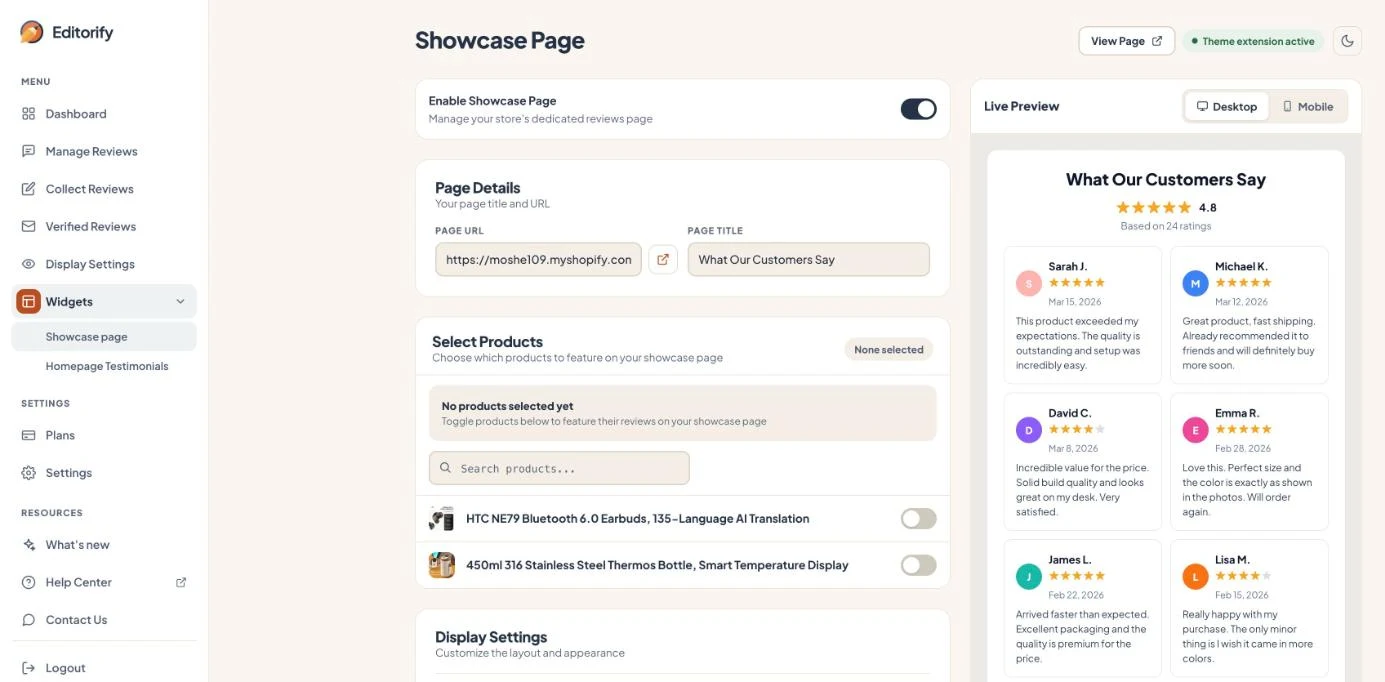
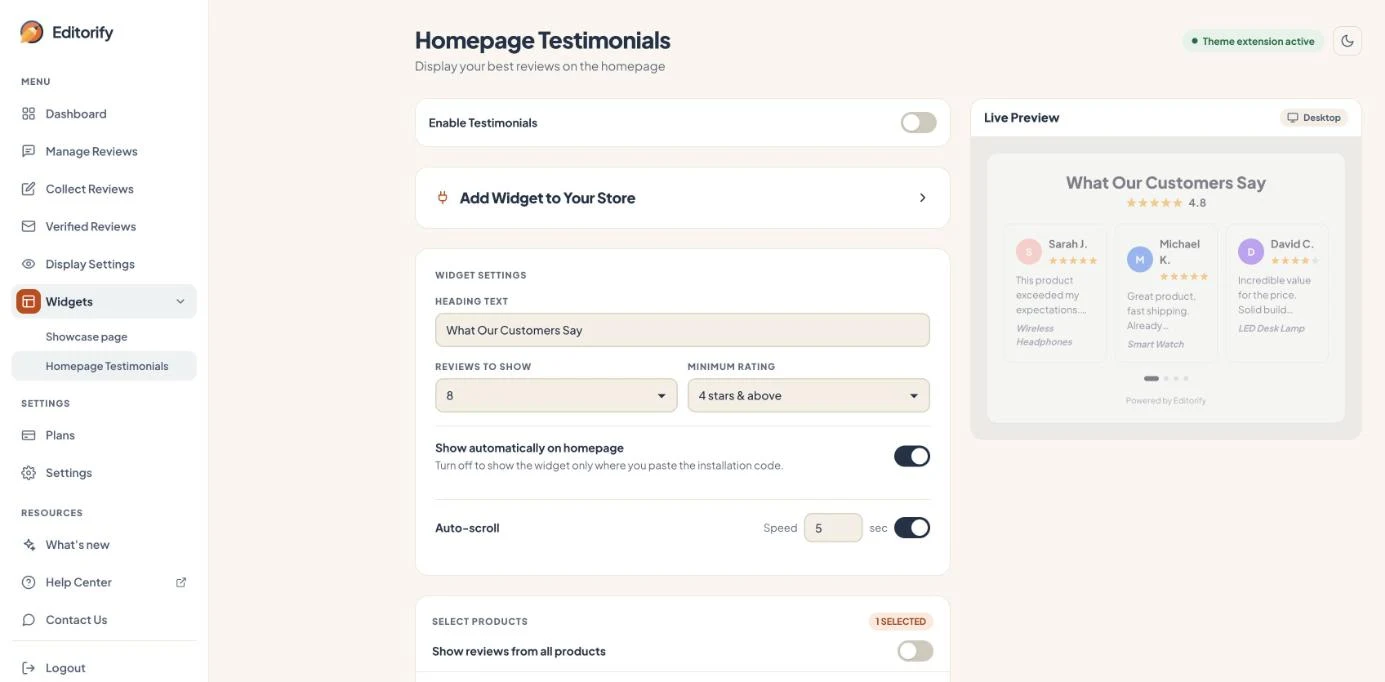
Plans and Settings
Plans compares Premium, Gold and Diamond, billed monthly or yearly, and shows the plan you are on.
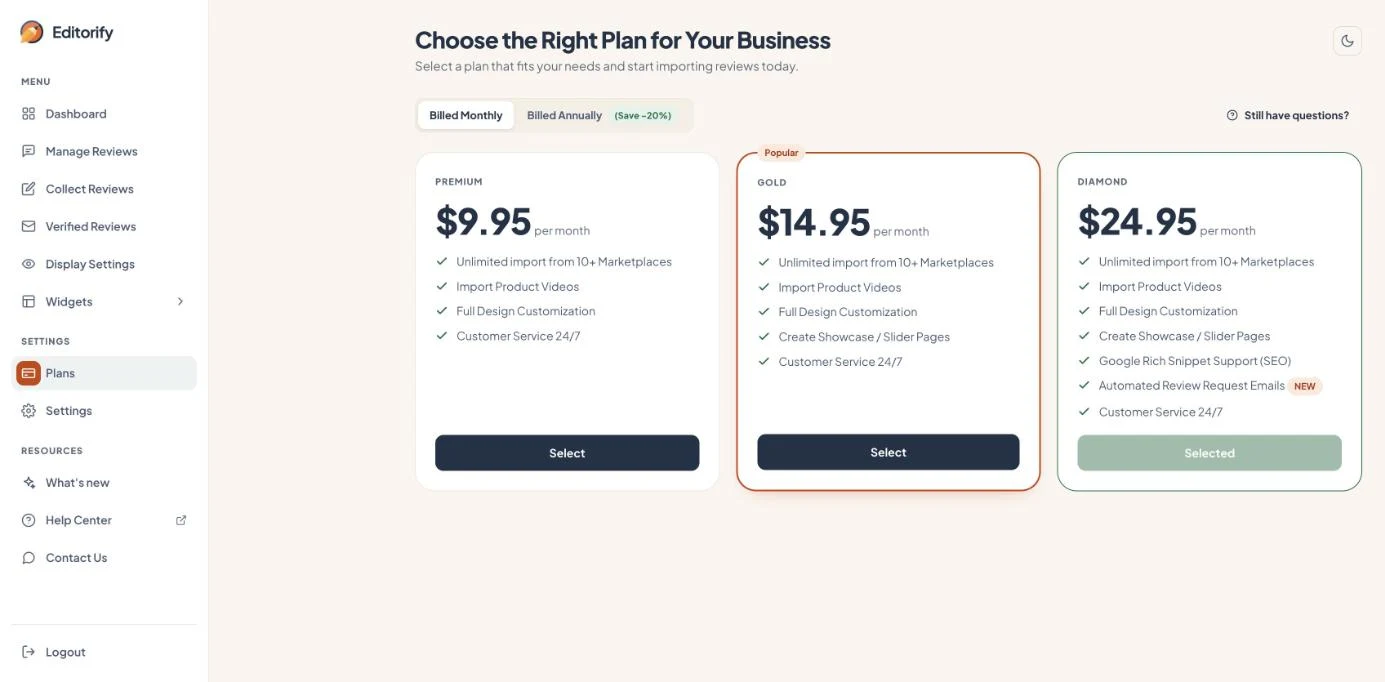
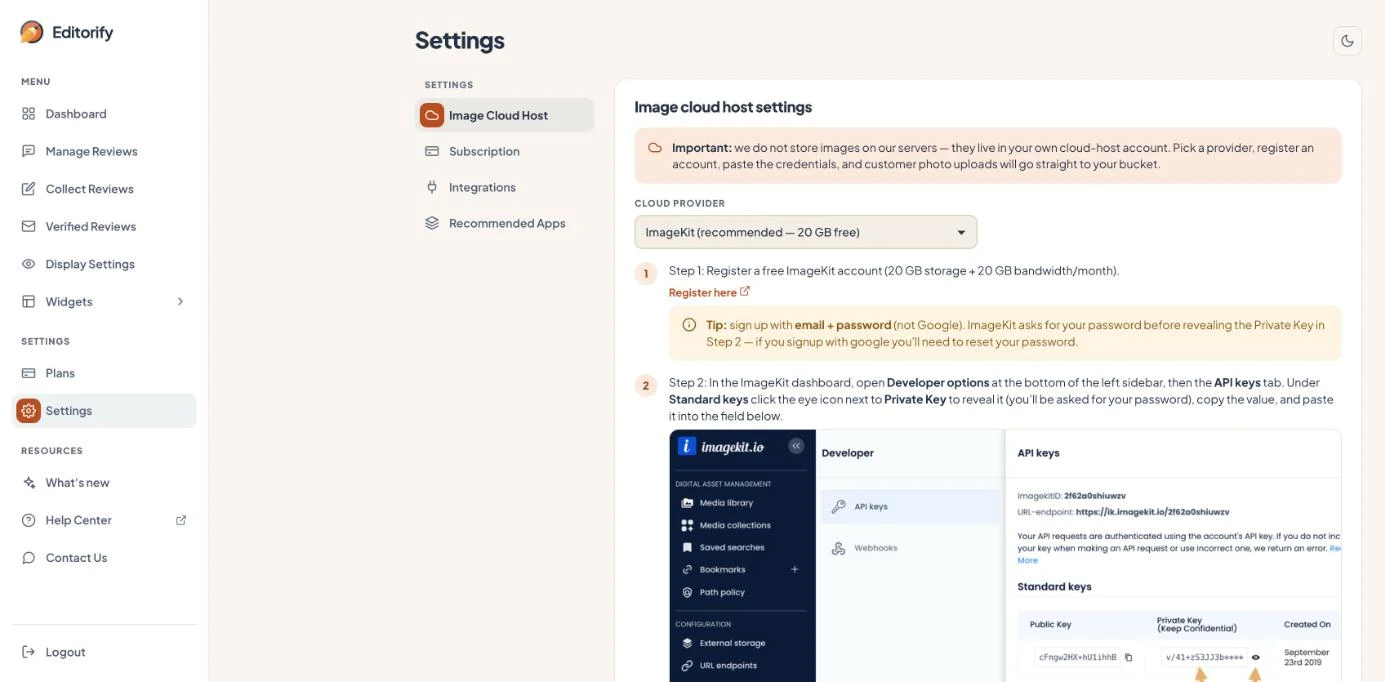
Settings has four sections: Image Cloud Host (where customer photo uploads are stored), Subscription, Integrations and Recommended Apps.
What’s new
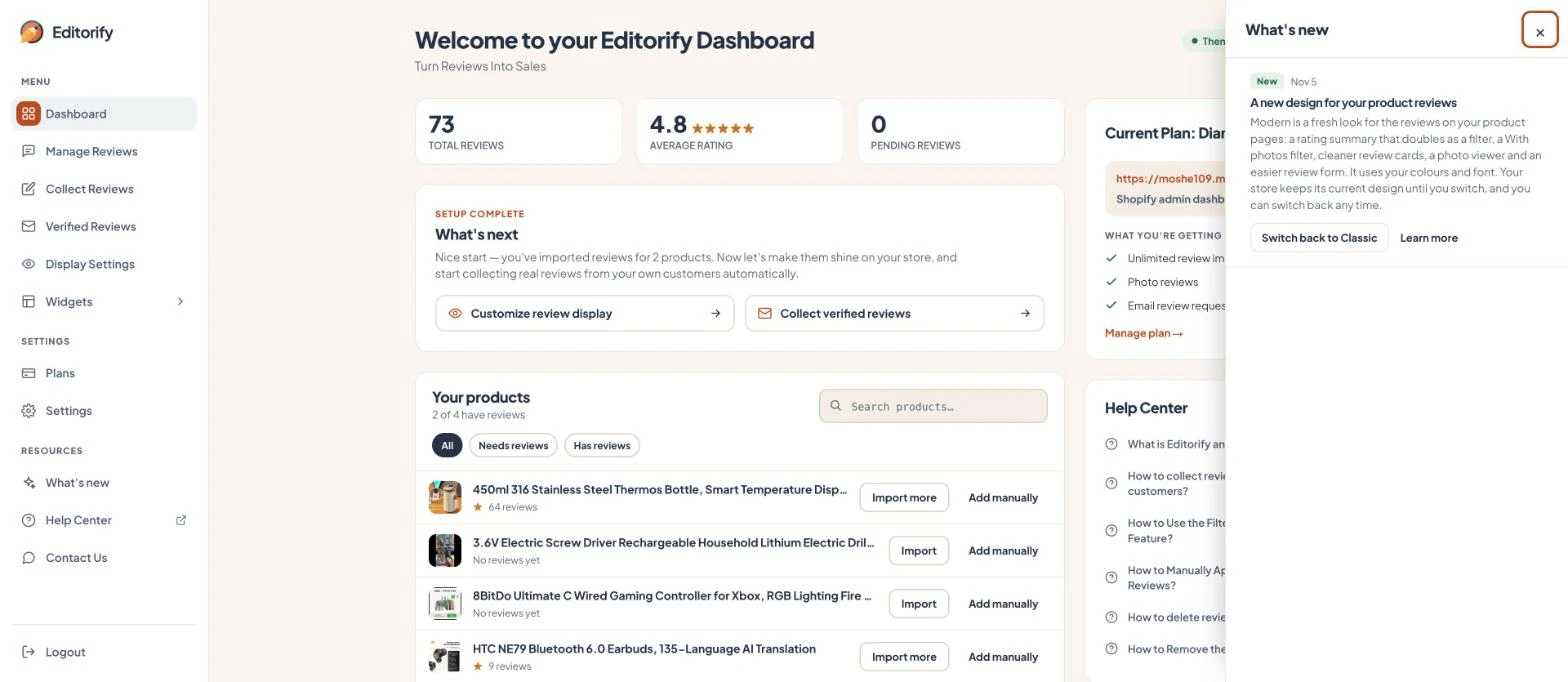
A dot on What’s new in the side menu means there is news: a new feature, an improvement or a fix. Click it to read the updates. Some have a button to try the change straight away, like switching to the Modern review design.
Dark theme
Prefer a darker screen? Click the moon button at the top right of any page.
On your phone
On a phone, the most used pages sit in a bar at the bottom of the screen: Dashboard, Manage Reviews, Display Settings and Verified Reviews. More opens the full menu.
FAQ
Did anything change on my store?
No. Only the dashboard looks different. Your reviews, widgets and settings on your store are the same.
I can’t find a setting I used before
Display settings are under Display Settings, the review form under Collect Reviews, and review emails under Verified Reviews. If you still can’t find it, contact us and we’ll point you to it.
Related guides
Still stuck? Contact support or email support@editorify.com.