 Editorify
How to control the order of reviews on your storefront
On this page
You control the order of reviews on your storefront from the Editorify dashboard in three ways: set a default sort order (newest first, highest or lowest rated, or photo reviews first), drag specific reviews to the top of a product's list, and choose how many reviews load at once. It works the same on Shopify, Wix, WooCommerce and BigCommerce.
The options on this page:
Default sort order — pick the sort mode shoppers land on when they open the page (Most Recent, Highest Rated, Lowest Rated, or Photo Reviews).
Drag‑and‑drop ordering — manually pin specific reviews to the top so they always appear first, no matter which sort mode shoppers pick.
Reviews per page — show a set number of reviews with a Load More button or page numbers, or load them all at once.
You can combine them.
Set the default sort order
The sort dropdown on your storefront review widget now has four options:
- Most Recent — newest reviews first (default)
- Highest Rated — 5★ first, descending
- Lowest Rated — 1★ first, ascending
- Photo Reviews — reviews with photos appear first
Shoppers can still change the sort while browsing — your choice just sets the starting order they land on.
Steps
1. From the dashboard, go to Display Settings.
2. Scroll to the Stars on collection page section.
3. Find the new Default sort order dropdown right below it.
4. Pick one of the four options.
5. Settings save automatically — you'll see the green "Saved" toast.
6. Refresh your product page to see the new default in action.
Tip
If you import a lot of photo reviews from AliExpress, Photo Reviews is a strong default — it puts your most visually persuasive reviews up front without forcing every shopper to filter.
Sort reviews by date
To show the newest reviews first, set the default sort order to Most Recent (see above). It is the default, so unless you changed it, your reviews are already sorted by date.
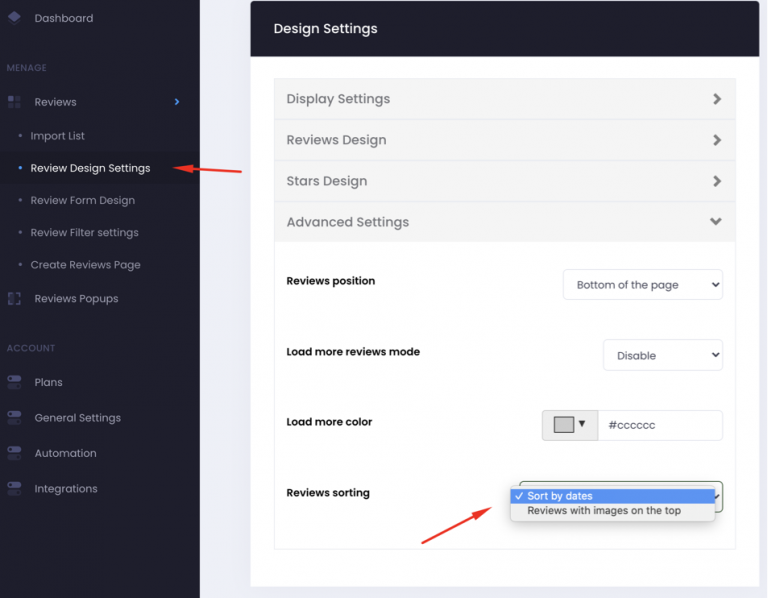
In older versions of the dashboard the same choice is called Reviews sorting:
Open Review Design Settings from the side menu and expand Advanced Settings.
In Reviews sorting, pick Sort by dates or Reviews with images on top.
Click Save.
Drag and drop to reorder reviews manually
When you have a few "hero" reviews — long, detailed, multi‑photo, or from a recognizable customer — you may want them at the top regardless of sort mode. The new drag‑and‑drop feature lets you pin them in place.
Steps
1. Go to Manage Reviews → Import List in your dashboard.
2. Find the product whose reviews you want to reorder.
3. Click the Edit (pencil) icon next to the product.
4. The reviews modal opens, listing every review for that product.
5. Each review now has a drag handle (the six‑dot grip) on the left side of the meta row, next to the stars.
6. Click and hold the grip, then drag the review up or down to its new position.
7. Release. A green flash confirms the new order is saved.
8. Repeat for any other reviews you want to pin.
That's it — no Save button. The order is persisted as soon as you drop the review.
What happens on the storefront
- Reviews you've manually positioned float to the top of the widget, in the order you dragged them, across every sort mode (Most Recent, Highest Rated, Lowest Rated, Photo Reviews).
- Reviews you haven't touched continue to sort by the shopper's chosen mode below the manually‑positioned ones.
- New reviews you import later automatically land at the very top of the list, so they show up immediately in the modal for your review. You can drag them down or leave them at the top.
Important notes
- The drag handle is hidden while a search filter is active. This protects you from accidentally saving an order based only on a filtered subset of reviews. Clear the search to drag.
- Manual order beats every sort mode. If you pin a 1‑star review to the top, it will appear at the top even when a shopper picks "Highest Rated". Use this power carefully.
- Deleting a review does not affect the order of the others — gaps in the order are fine.
- There's no limit on how many reviews you can manually position.
Set how many reviews show per page
If a product has many reviews, you can show them in batches instead of one long list.
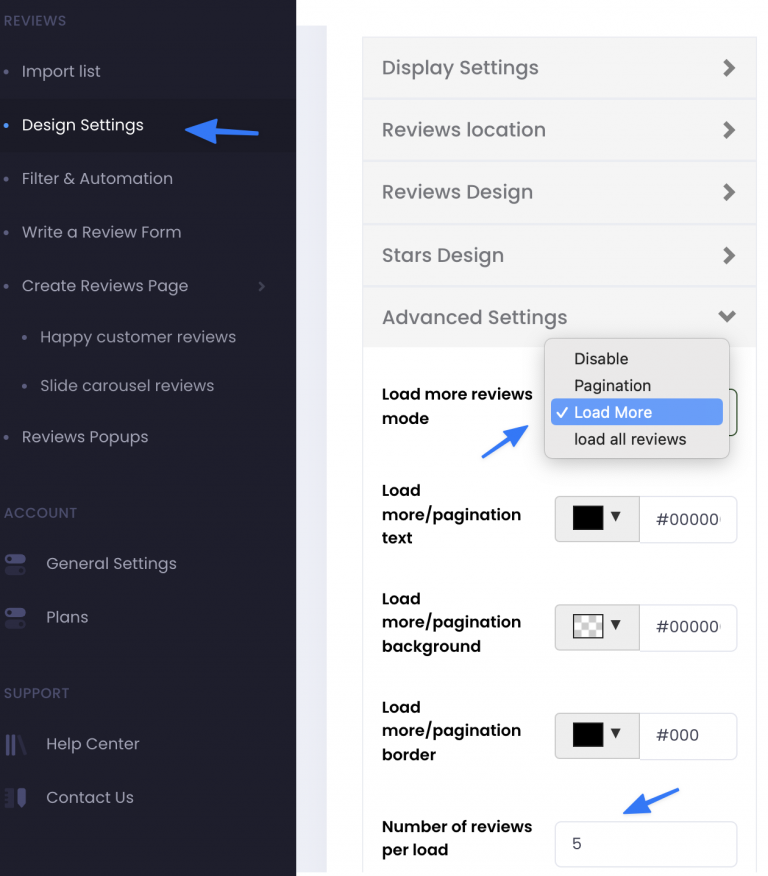
Open the design settings from the side menu (Design Settings or Review Design Settings, depending on your dashboard version) and expand Advanced Settings.
In Load more reviews mode, pick one of the options: Disable, Pagination (page numbers), Load More (a button that shows the next batch) or load all reviews.
Set Number of reviews per load, for example 5.
Optionally, set the colours of the Load More or pagination text, background and border.
Save your changes.
Frequently asked questions
Q: Will my existing reviews change order when I turn this on?
No. Until you drag a review or import a new one, every review stays exactly where it was. Manual ordering is opt‑in per review.
Q: What if I change the default sort while shoppers are on the page?
Already‑loaded pages keep the previous order until refreshed. New shoppers get the new default immediately.
Q: Can I reset a review to "automatic" order?
Drag it down to the bottom of the list — once it's below all your other manually‑positioned reviews, the storefront will treat it the same way as untouched reviews.
Q: Does this work on Shopify, Wix, WooCommerce and BigCommerce?
Yes — the storefront widget on all four platforms reads the same order, so any reordering you do in the dashboard applies everywhere your reviews show up.
Q: Where do new imports land?
At the very top, above any reviews you've manually positioned. This is intentional so you see new reviews first and can decide whether to keep them at the top, drag them lower, or leave them to sort naturally.
Common workflows
"I just want my best reviews up top, then let everything else sort naturally."
Open the modal, drag your 3–5 favorite reviews to the top in the order you want them, close the modal. Done.
"I want photo reviews first by default, but I have one specific text review I always want at position 1."
Set Default sort order = Photo Reviews in Display Settings, then drag that one text review to the top of its product's modal. It will stay at position 1 even though Photo Reviews is the default — manual order overrides the sort mode.
"I want to feature a specific customer testimonial across many products."
You'll need to drag it to the top of each product's modal individually — manual order is per‑product, not store‑wide.
To change how the reviews look (colours, list or grid layout, texts), see How to customize how your reviews look.
If something isn't working as described, contact us at support@editorify.com with your store URL and the product you were editing.
Still stuck? Contact support or email support@editorify.com.