 Editorify
How to enable cookies with chrome?
On this page
Editorify needs Chrome to allow cookies. If cookies are blocked, you cannot log in to the Editorify dashboard or import reviews and videos, and the extension shows a "Login" button on product pages instead of the "Add" button. To fix it, allow cookies in Chrome's settings and turn off any extension that blocks them.
Why cookies get blocked
Cookies can be blocked by Chrome's own settings, by a privacy or ad-blocking extension, or by firewall settings. Check Chrome's settings first, then your extensions.
Allow cookies in Chrome
The quick way
Open Chrome on your computer.
Open a new tab and paste this address:
chrome://settings/content/cookiesMake sure cookies are allowed: the page should read "Allow sites to save and read cookie data", not "Blocked".
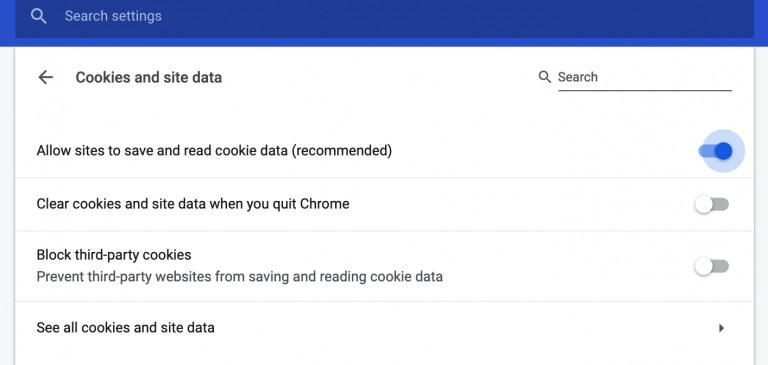
Through the menus
At the top right of Chrome, click More

 Settings.
Under "Privacy and security", click "Site settings".
Click "Cookies and other site data".
Choose to allow cookies.
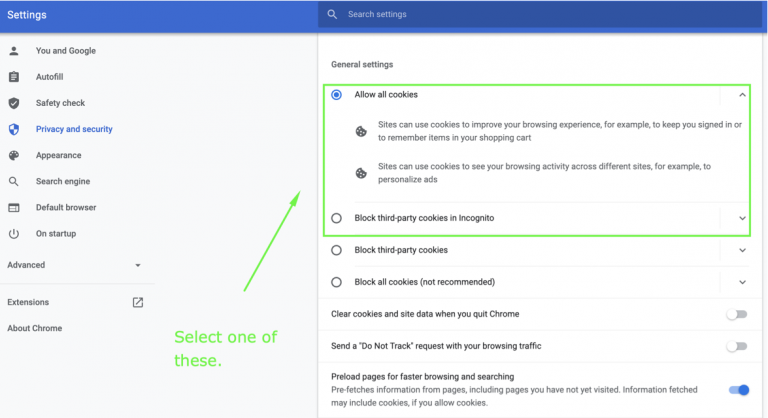
Menu names can differ slightly between Chrome versions. If you cannot find them, use the address in the quick way above.
Check your extensions
Open a new tab and paste this address:
chrome://extensions/Look for extensions that block cookies or tracking, such as privacy or ad blockers.
Turn them off, reload the supplier's page and try the import again.
Still not working?
Follow I have an issue to import, what to do next? or contact us.
FAQ
Why does the extension show "Login" instead of "Add"?
Chrome is blocking cookies, so the extension cannot see that you are logged in. Allow cookies as above and reload the page.
Which browser do I need?
Chrome. Importing runs in the Editorify Chrome extension, so the cookie settings that matter are the ones in your own Chrome.
Still stuck? Contact support or email support@editorify.com.