 Editorify
How to turn review widgets on or off
On this page
You turn each Editorify storefront widget on or off with a switch in the Editorify dashboard: the reviews widget, the stars under the product title, the stars on collection pages, the rating chart and the write-a-review button. The switches work the same on Shopify, Wix, WooCommerce and BigCommerce. Off hides the widget from your storefront.
Where the switches are
Log in to the Editorify dashboard.
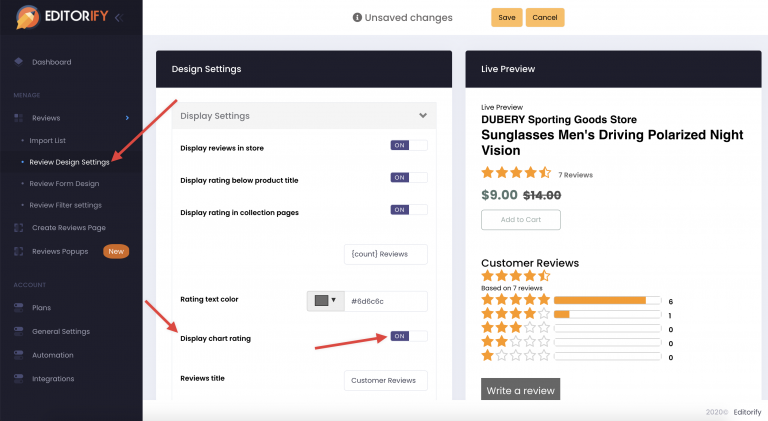
For the first four widgets, open the design settings page from the side menu (called Design Settings, Review Design Settings or Display Settings, depending on your dashboard version) and expand Display Settings.
For the write-a-review button, open Write a Review Form in the side menu.
After a change, click Save. Newer versions of the dashboard save automatically and show a green "Saved" message.
Reviews widget
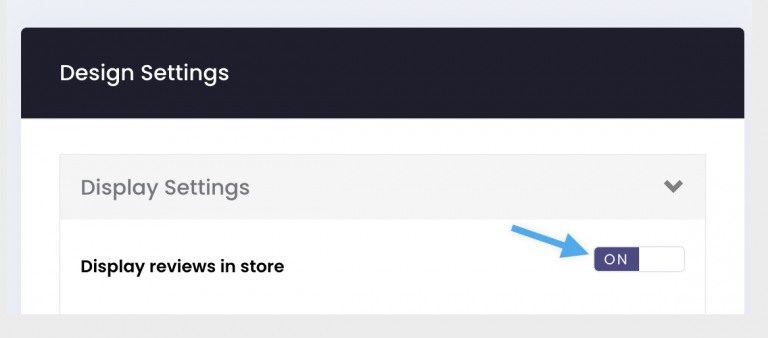
This switch shows or hides all Editorify reviews in your store.
Open the design settings and expand Display Settings.
Set Display reviews in store to ON or OFF.
Save your changes.
Stars under the product title
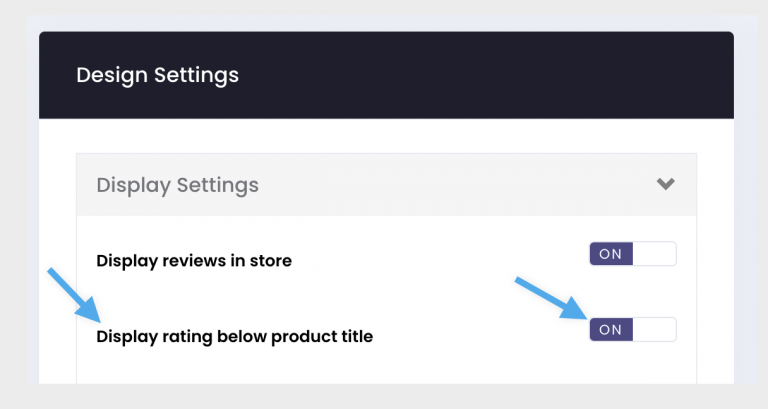
This is the star rating and review count shown under the product name on the product page.
Open the design settings and expand Display Settings.
Set Display rating below product title to ON or OFF.
Save your changes.
Collection page stars
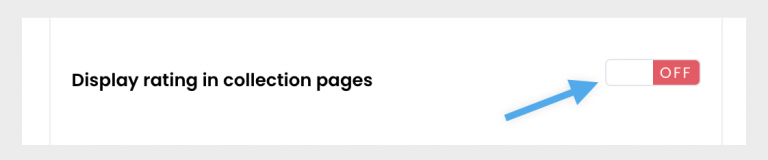
This shows each product's average rating on your collection (category) pages.
Open the design settings and expand Display Settings.
Set Display rating in collection pages to ON or OFF.
Save your changes.
On some Shopify themes the stars need to be placed in the theme first: see How to show stars rating under the product title in collection page.
Rating chart
The chart is the summary above the reviews that shows how many reviews each star level has.
Open the design settings and expand Display Settings.
Set Display chart rating to ON or OFF.
Save your changes.
Write-a-review button
The button opens the form your customers use to leave their own reviews.
Open Write a Review Form in the side menu.
Set Form widget to ON or OFF.
Save your changes.
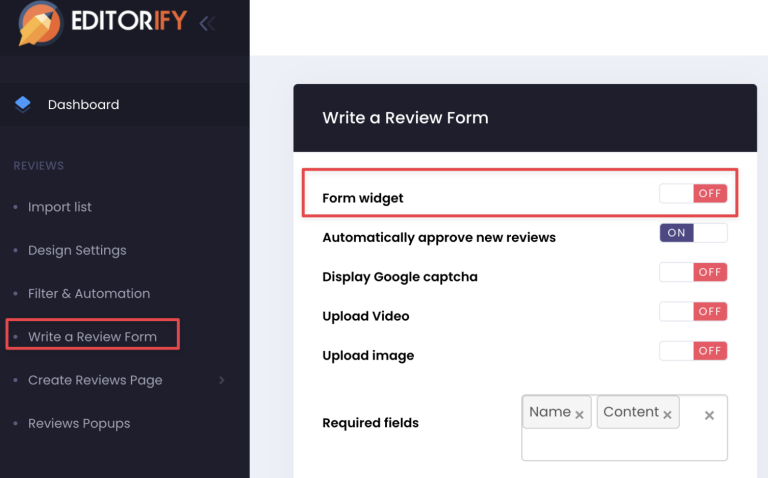
The same page also has the Automatically approve new reviews switch; see How do I change new customer reviews to be manually approved.
Related guides
How to customize how your reviews look (colours, layout, texts and the button design)
Still stuck? Contact support or email support@editorify.com.